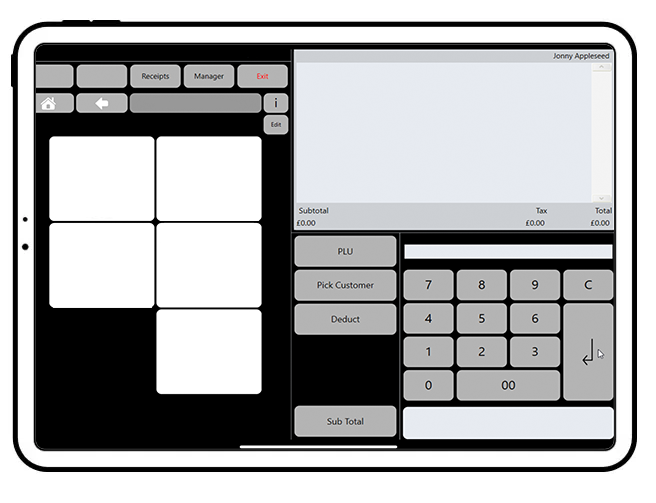
IND - Step One, Logging in to MYPOS Connect

Mar 25, 2026
 2
2
Pick up an iPad from its charging bay and unlock the iPad by entering the iPads 6 digit passcode
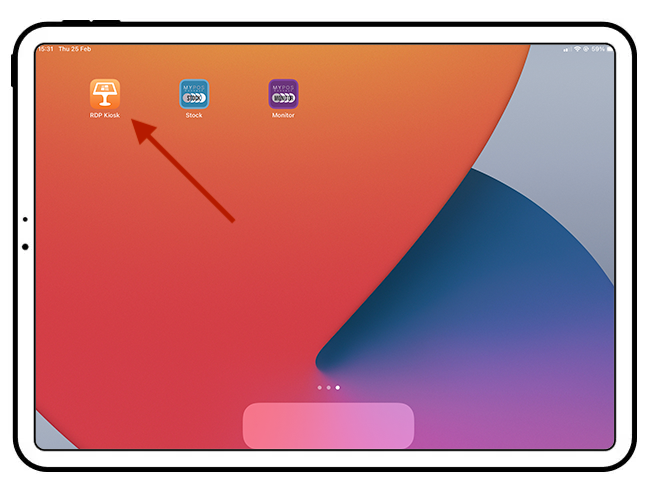
Press the Orange Icon Labeled "RDP Kiosk"
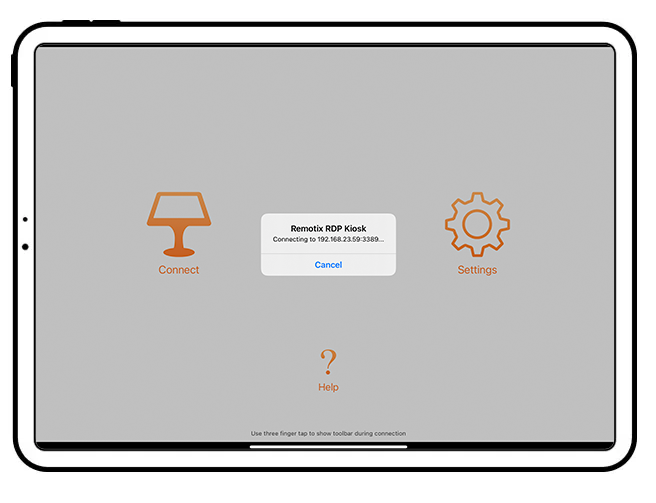
The App will connect to a MYPOS instance on the local store server, this should happen automatically if it doesn't press the "Connect" button to manually connect
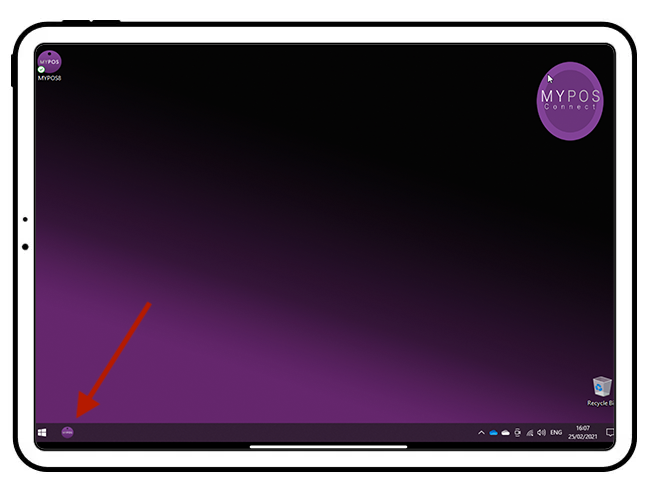
To Load MYPOS you can either Double Click the Desktop Icon or Single Press the TaskBar Icon (see arrow)
Once Loaded MYPOS Login screen will appear
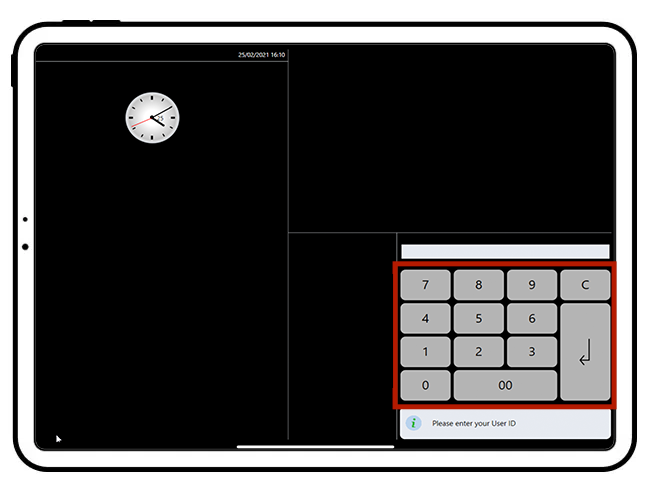
Using the Keypad enter your four-digit user code and press the "enter" key, then press your four-digit pass code and press the "enter" key once more
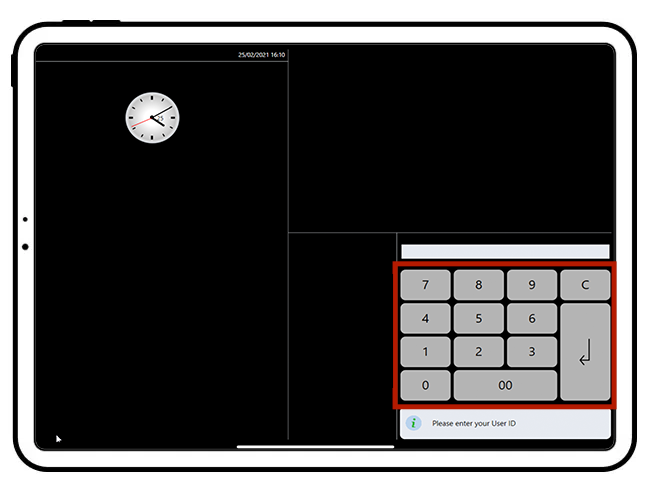
When successfully logged in you will see your selling Home Page, your name will show in the top right-hand corner of the screen