


 2
2
Selecting a Product by Barcode Scan
Load the MYPOS application and log in
Pick up the iPad with the Barcode Scanner attached
Press and Hold the round button on the Barcode Scanner, a Red Light will appear, move this red light over the products barcode
If the barcode exists in the MYPOS system the product will be loaded into the Till Roll
Selecting a Product by Menu Buttons
Load the MYPOS application and log in
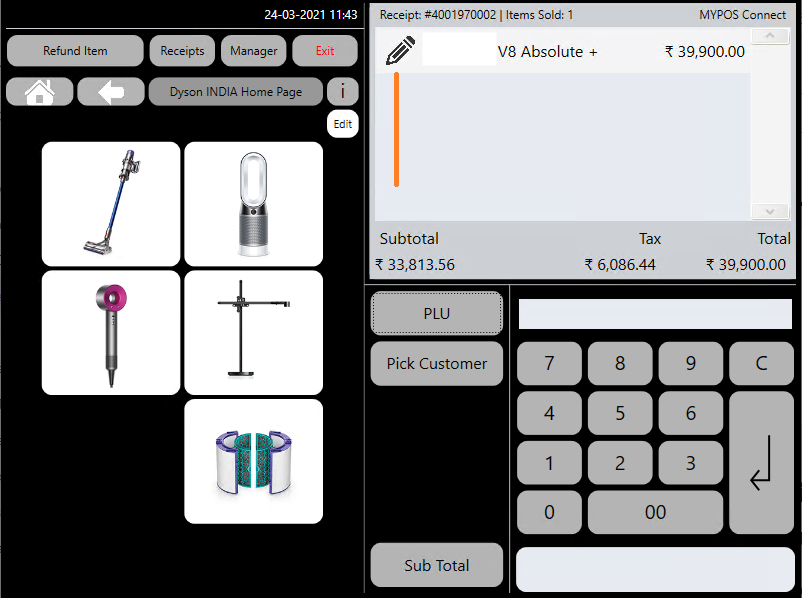
On the Left Hand Side of the Screen you will see several pictures indicative of product Categories (a Supersonic for Personal Care for Example) , Select the picture which matches the product range of the item you are looking for
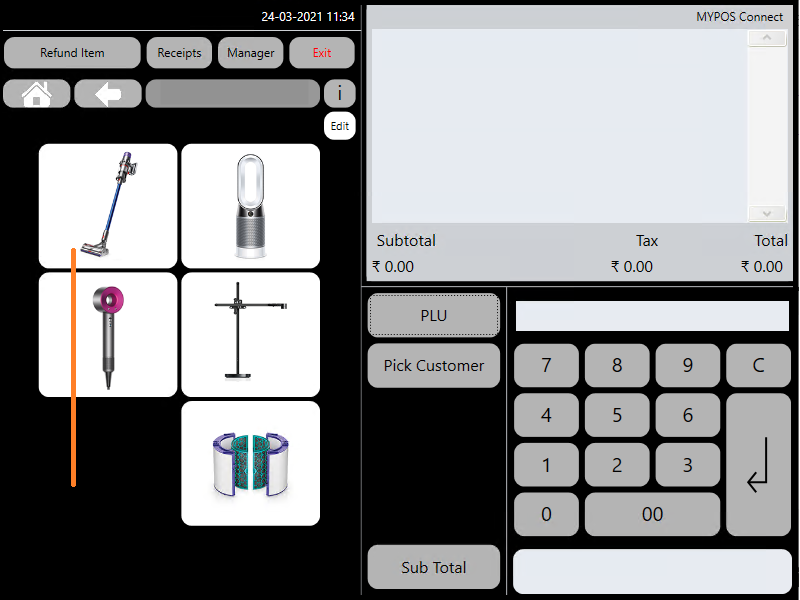
A Sub menu will appear, depending on how many products in the range there may be several layers of sub menu to navigate to the correct product range, for example
'Floor Care > Cord Free > V15'
When you have located the correct product press the menu button for the product to select it
The product will be loaded into the Till Roll
Selecting a Product via the PLU Button
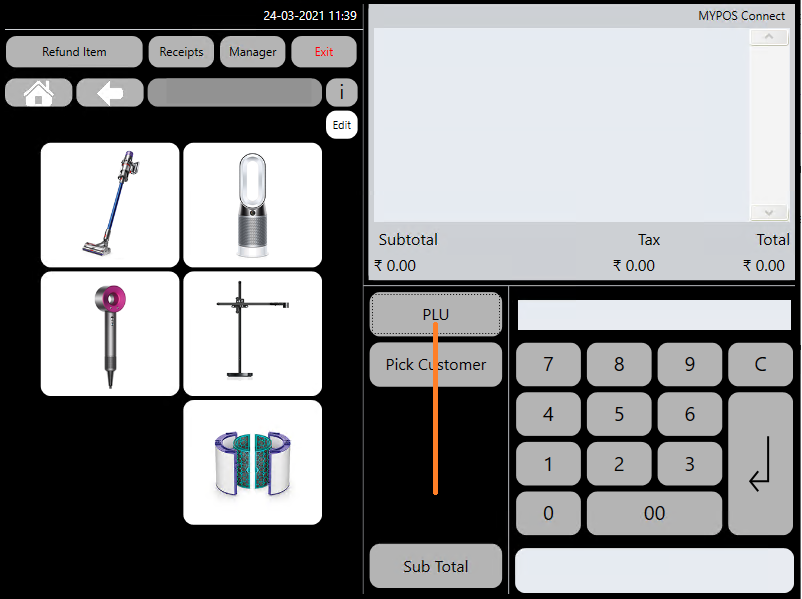
Select the PLU (Product Look Up) ButtonStart typing some information about the product, for example the product description, the barcode or the product code, as you type results which match will appear
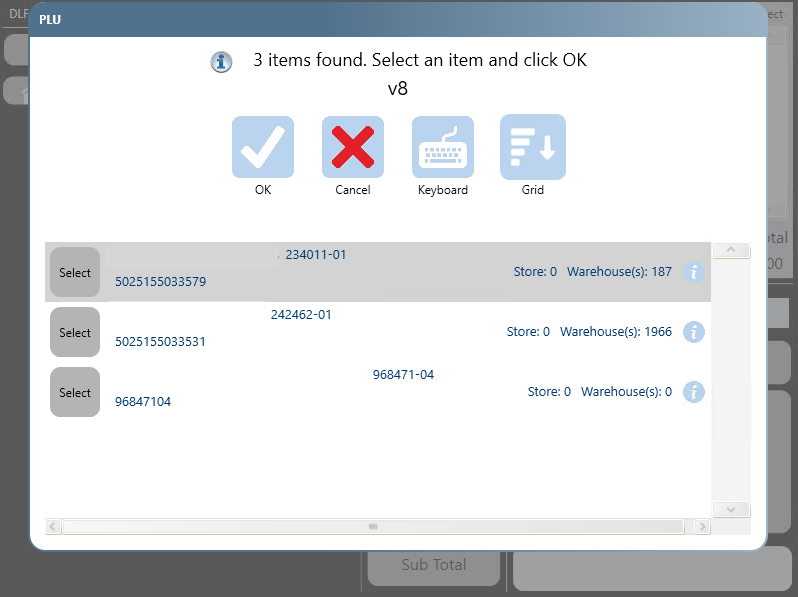
Press 'Select' next to the correct Product and the product will be loaded into the Till Roll
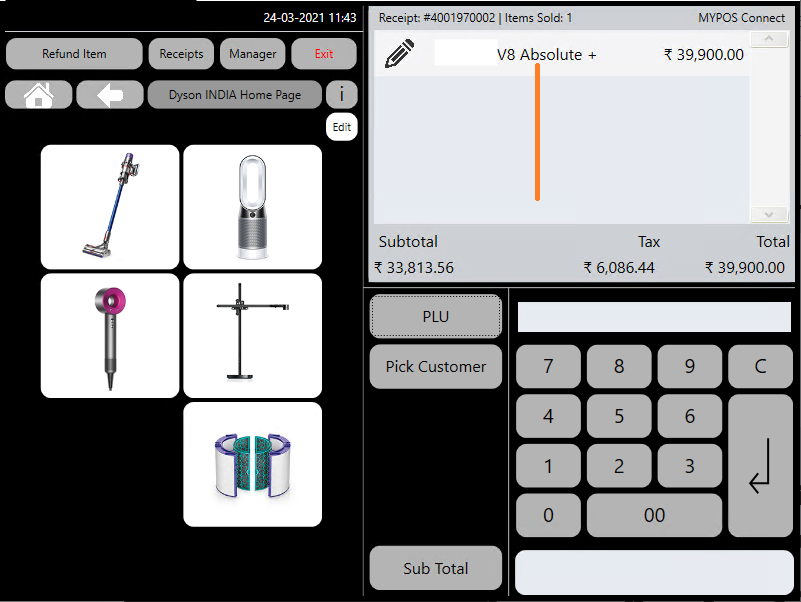
Once an item has been added via one of the three methods above you will need to select if the item is for home delivery (Home Delivery from Warehouse) or if the customer is going to take the product away with them and it is a 'Finished Goods' item (In Store Serial Number) , depending on which option is selected some extra detail will be required, see 'Step Six for arranging a Home Delivery Order'
For an In Store Serial Number Product press the 'In Store Serial Number' Option a pop up prompt will ask you to scan the products serial number using the iPads Barcode Scanner, if the product won't scan you can also use the keyboard to type the serial number in manually, however this should be a last resort as it increses the likelihood of inputting an error.
Editing a Product
Select the Pencil icon in the Till Roll
This will bring up the product Edit Page
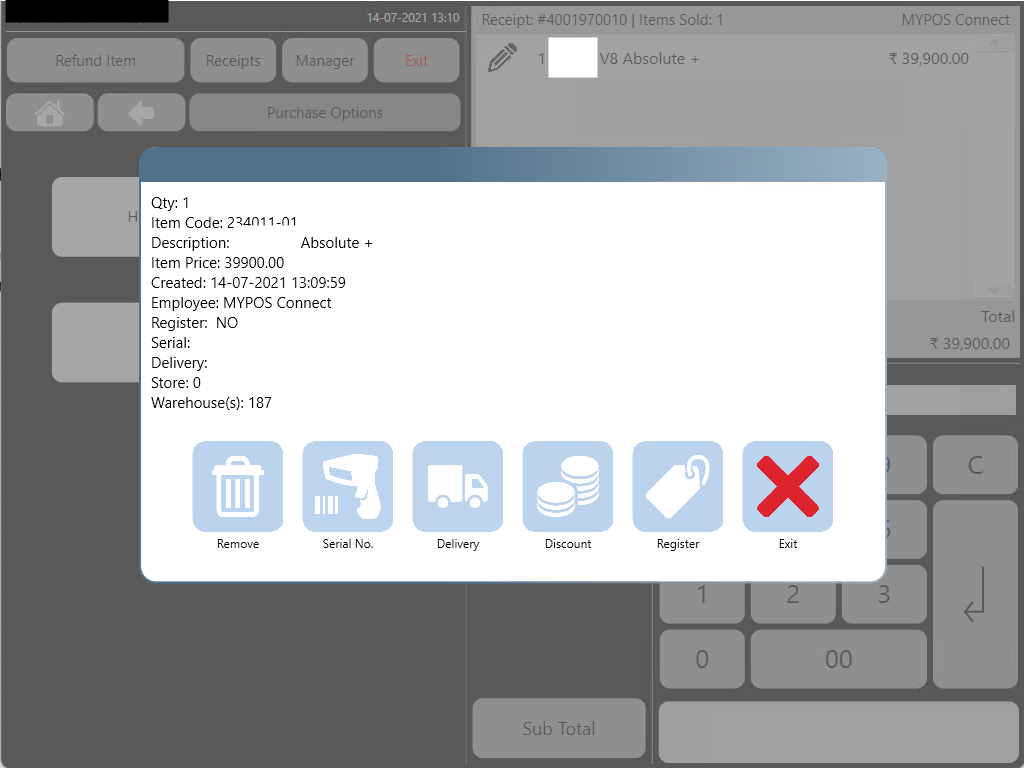
here a user can remove a product, add a serial number, organise delivery, register the product or change the price/discount the product

