0
0
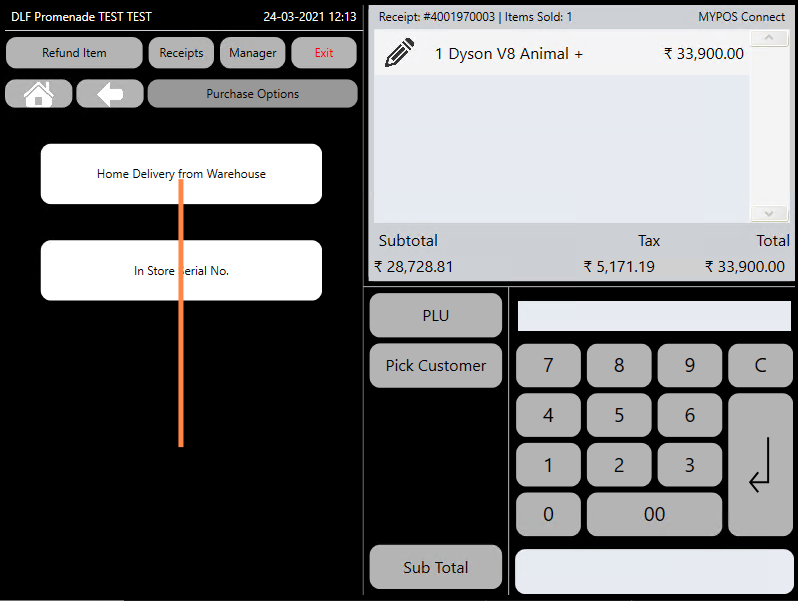
Once the Product has been selected and is in the till roll you can select the 'Home Delivery from Warehouse' option
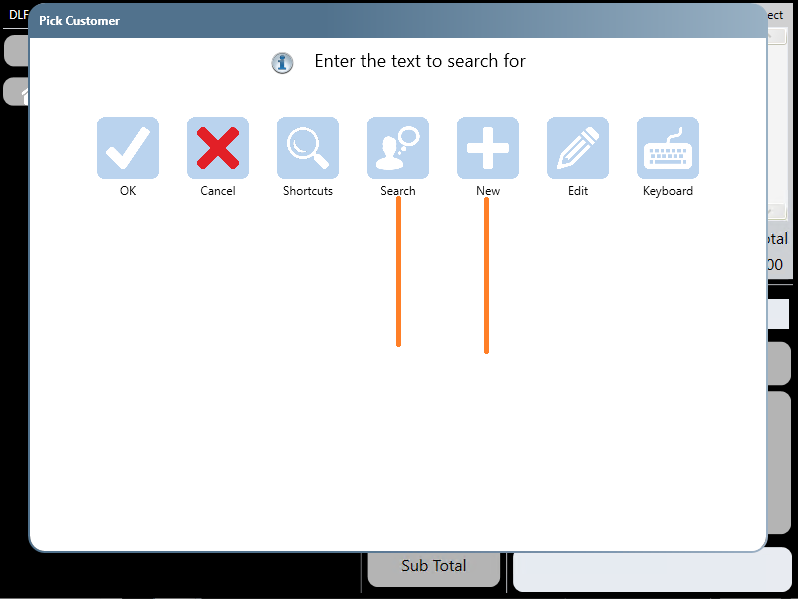
A Customer Details Prompt will appear, here you can search for an existing customer (Search) or add a New Customer (New)
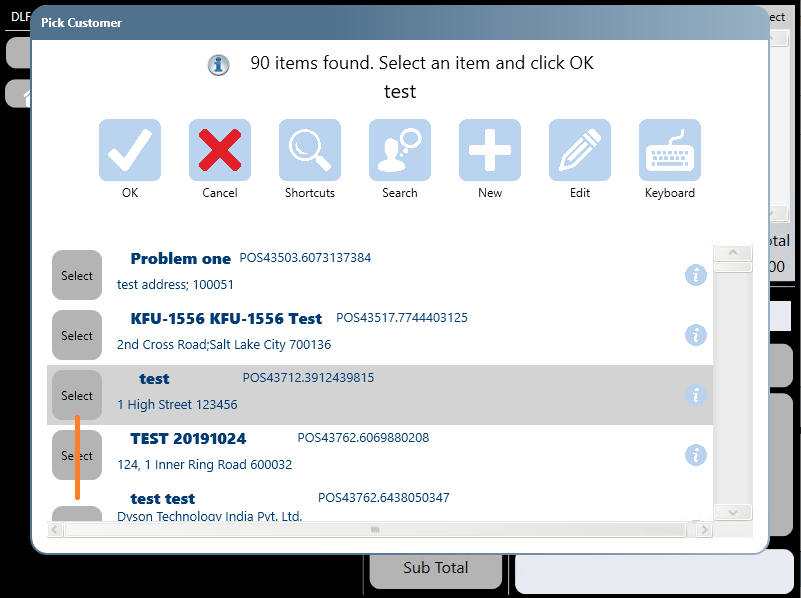
To find an existing customer press 'Search' and start typing in one of the customers identifying details (name, or phone number or email or address for example)
As you type the search results will refine automatically, once you have identified the correct customer press the 'Select' button next to this customer.
Adding a New Customer
To add a new customer , click on 'New' then fill out the customer's details, proceeding through each tab either by pressing 'next' or by selecting the next tap from the top of the screen,
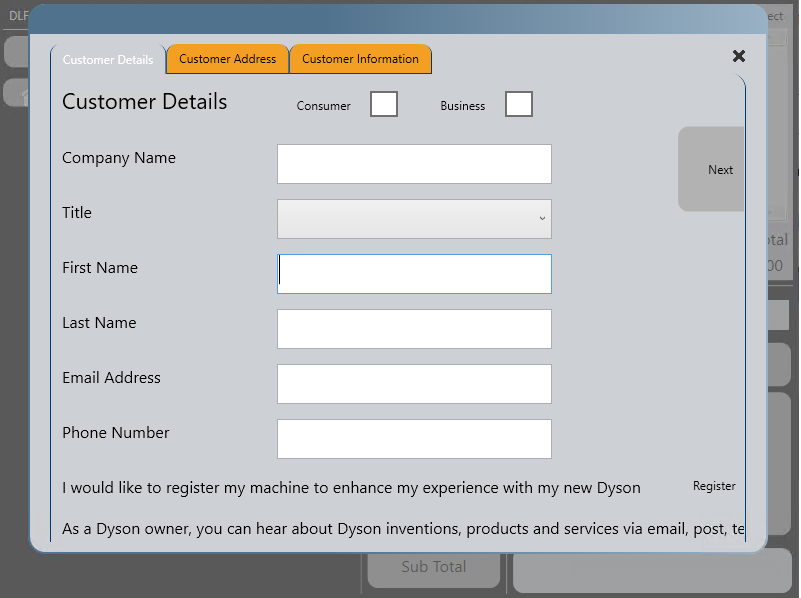
once the details are complete, pick 'finish' and select 'yes' to the offer to save the customer , the customers details will then be loaded into the Till Roll
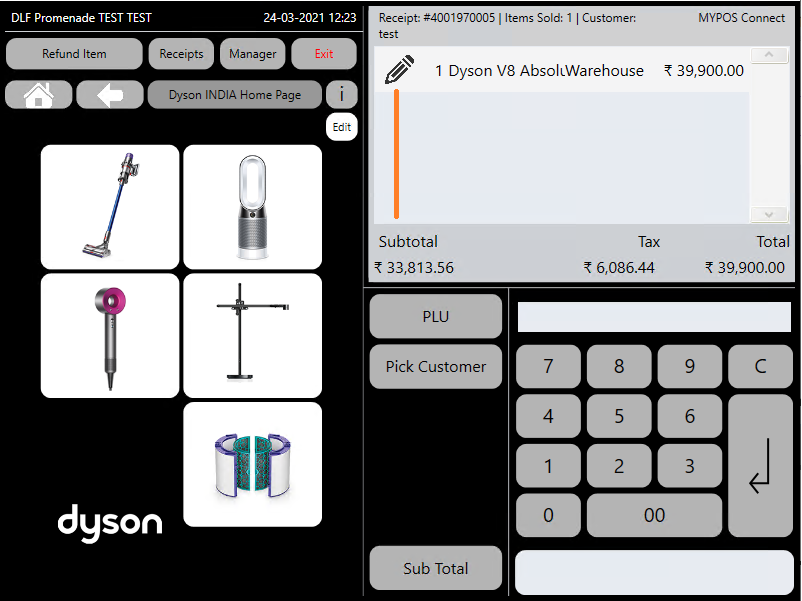
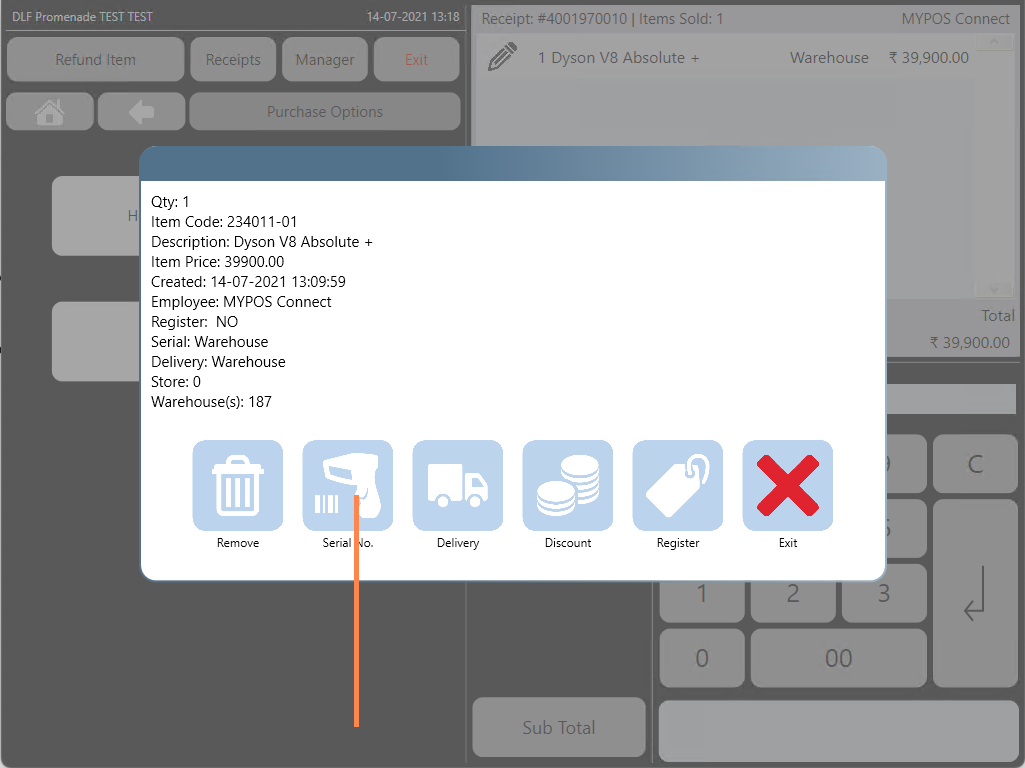
The Word 'Warehouse' will be displayed in the till roll in place of the serial number, this identifies this item as a Home Delivery Item, products will default to 'In Store Takeaway' orders so make sure to carefully check home delivery has been set if you want the items to be home delivered
To change the order back to an in store order you can press the 'Pencil' icon and select 'Serial Number' this will then prompt you to scan the items serial number and will set the item back to be an 'In store Takeaway' order