0
0
After the Product(s) have been scanned/selected, the customer has been added and the serial numbers/warehouse delivery options have been selected you are ready to proceed to the payment stage.
Select the 'Sub Total' button on the MYPOS interface
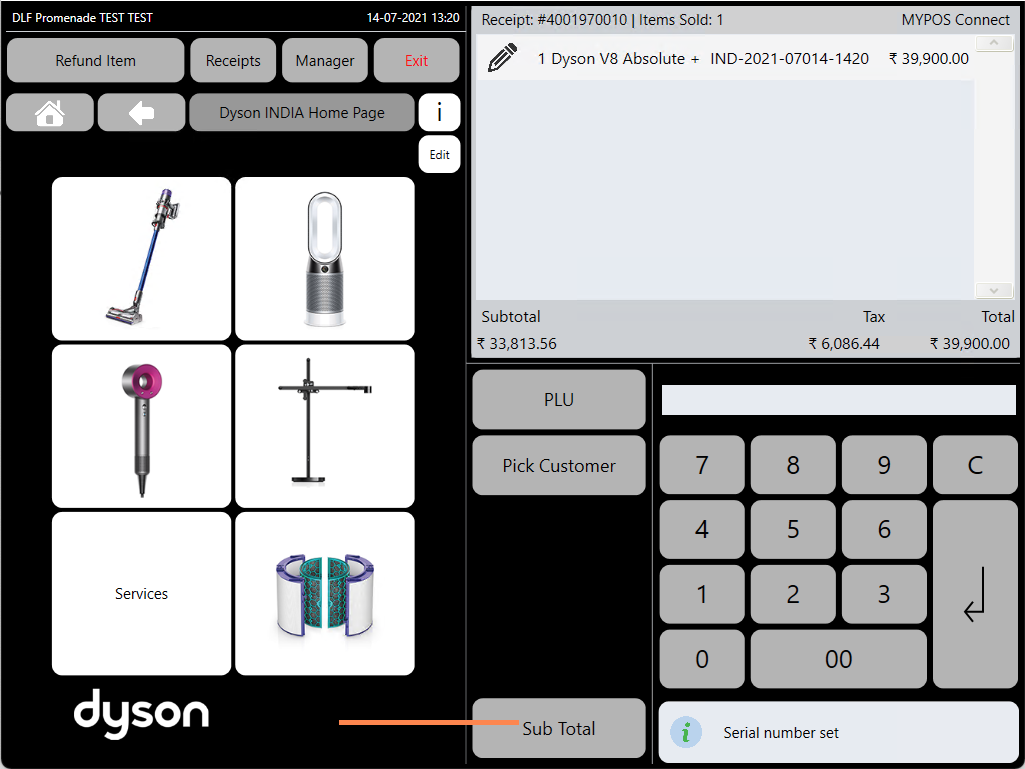
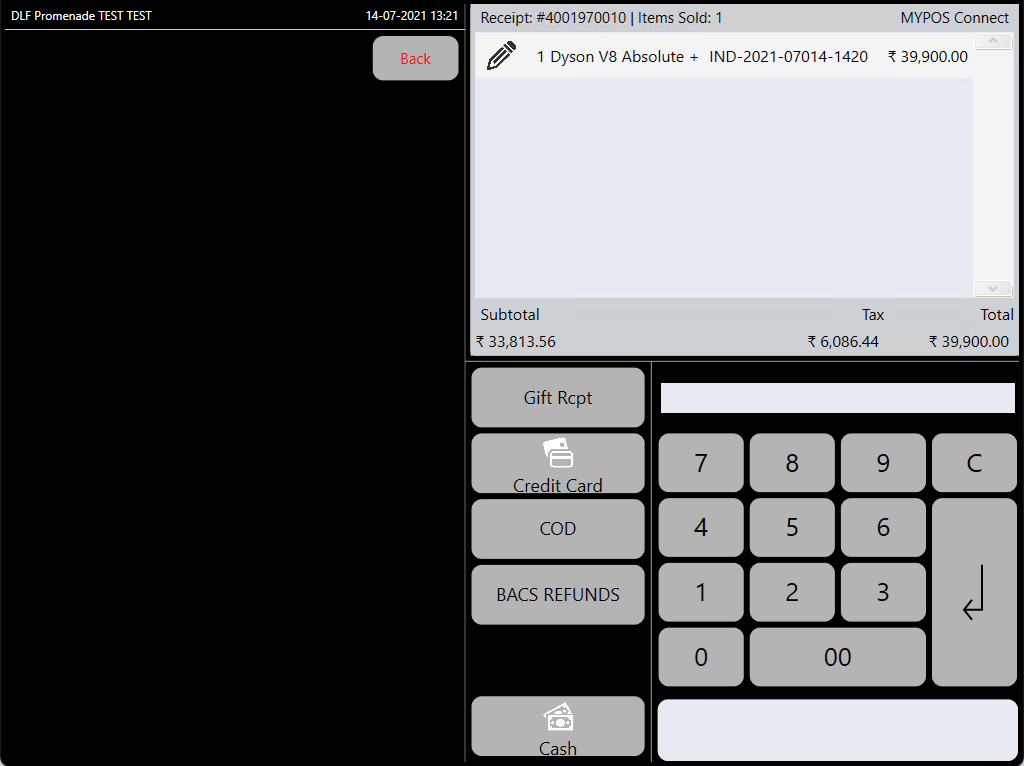
Depending on your store one or more payment methods may be displayed, this might include 'Adyen/Credit Card' , Cash, Instalment Payments
Cash Payment
If the customer is paying Cash, type in the amount of cash the customer has given you into MYPOS using the keypad on the MYPOS screen and the press the 'Cash' payment button, if your store has more than one cash drawer and/or more than one receipt printer a pop up window will appear to let you select firstly the Receipt Printer then the Cash Drawer you want to use for the sale.
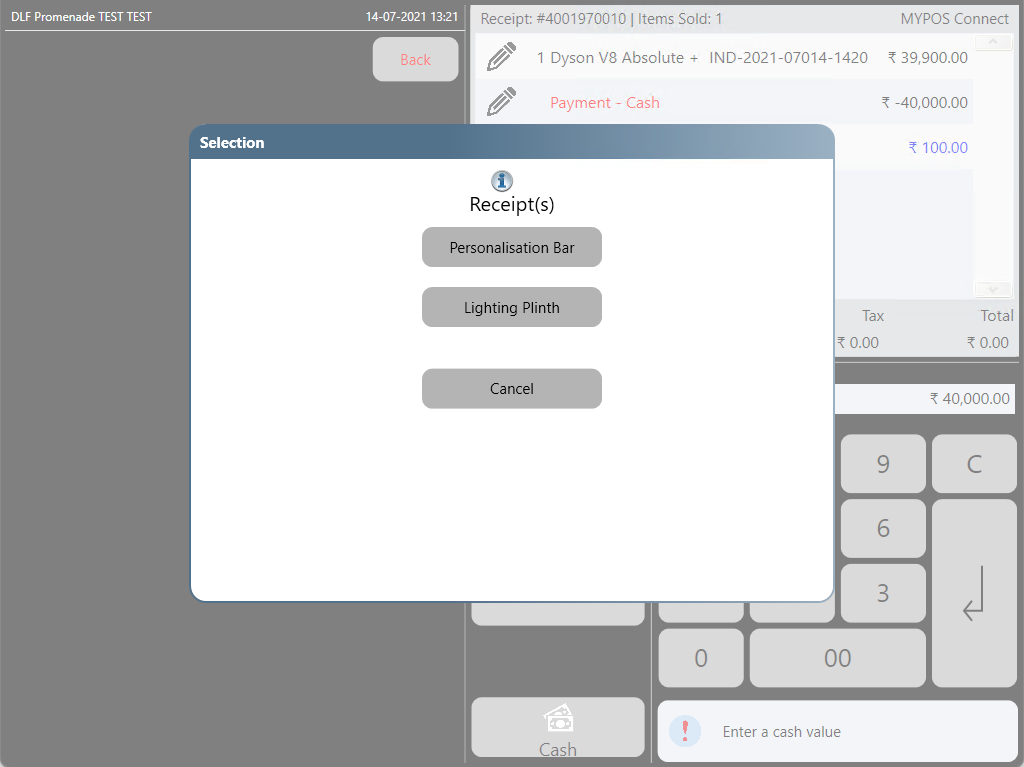
The Change to give to the Customer will then be displayed, a receipt will print from the selected printer and the cash drawer will open
A Cash Payment will open the Cash Drawer!
Make sure you are stood near to the cash drawer you are going to select before you press 'Cash'
Credit Card Payment
To Take a Payment via credit card or Digital Wallet you will need an Separate Payment terminal in addition to the iPad, once you have a Payment Terminal Press the 'Credit Card' button
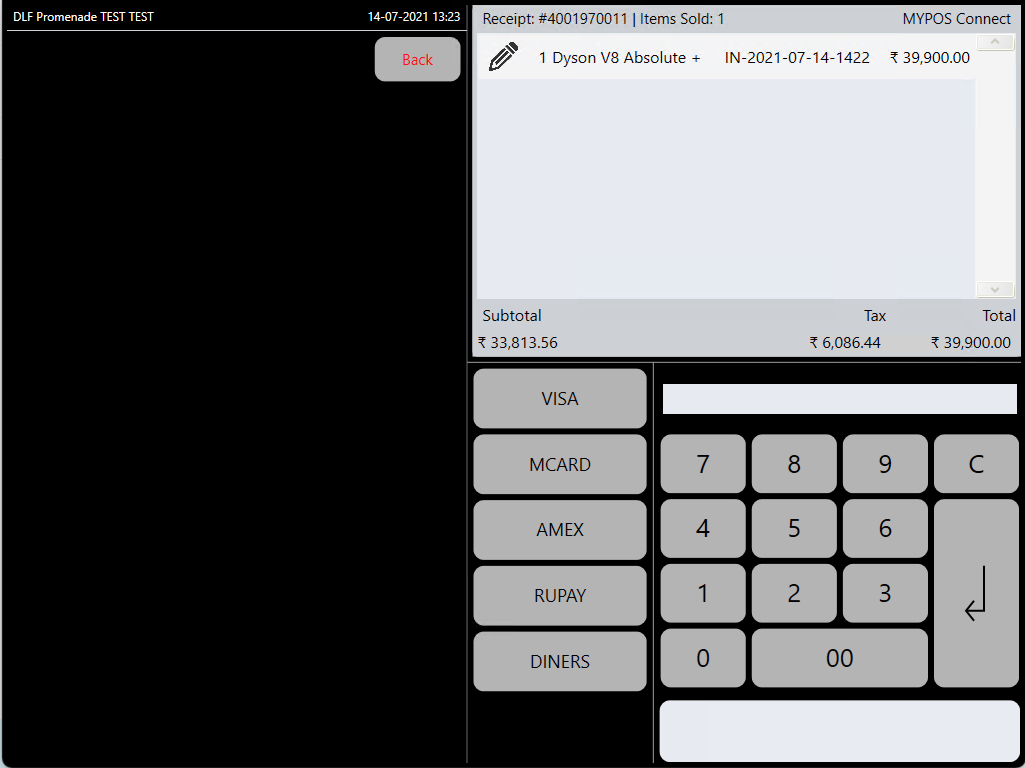
Type the amount to be paid by card into the Payment terminal and process the card transaction on the Payment Terminal following any prompts on the terminal, once the merchant copy of the receipt has printed choose the card payment type in MYPOS
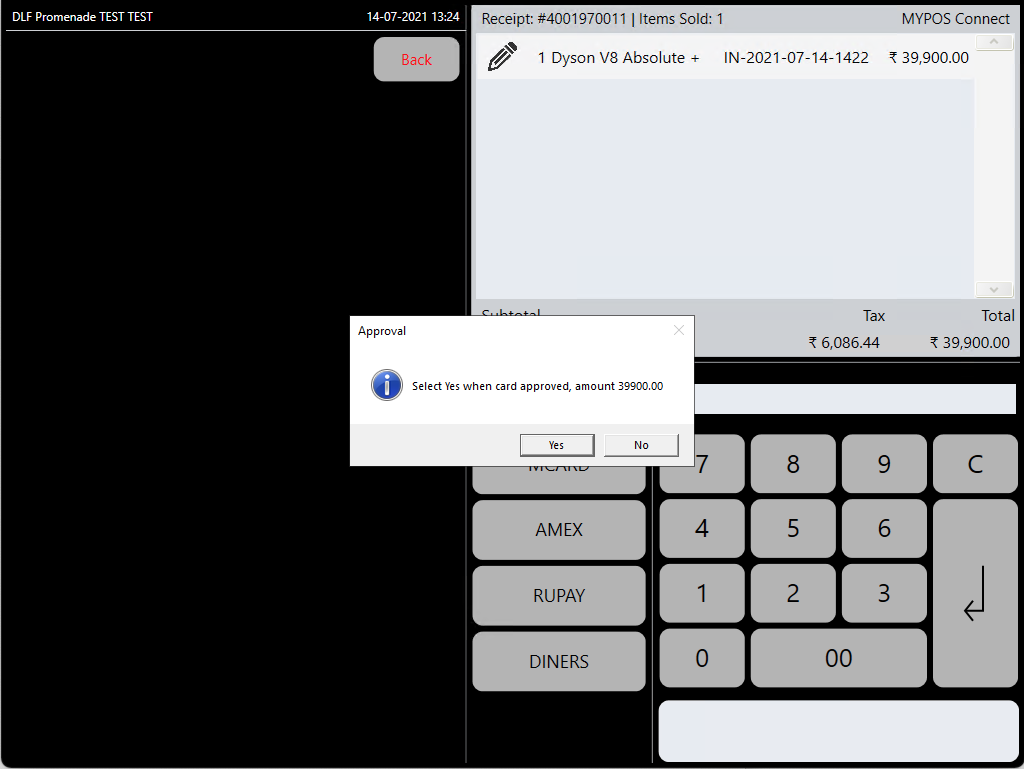
A Pop up will appear asking you to confirm the payment amount is correct, check this against the merchant copy of the receipt, press 'yes' if correct
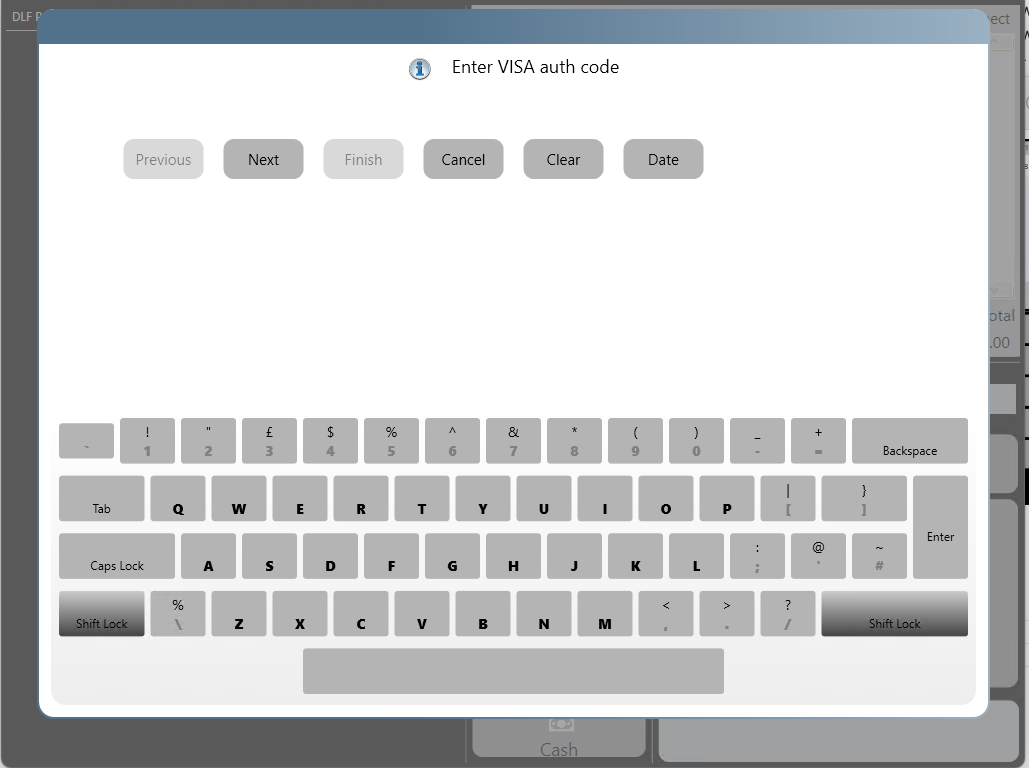
Enter the Card Auth Code from the Merchant copy of the receipt and press 'Next' then 'Finish'
 A Pop up window will appear allowing you to select which receipt printer is used in stores with more than receipt printer
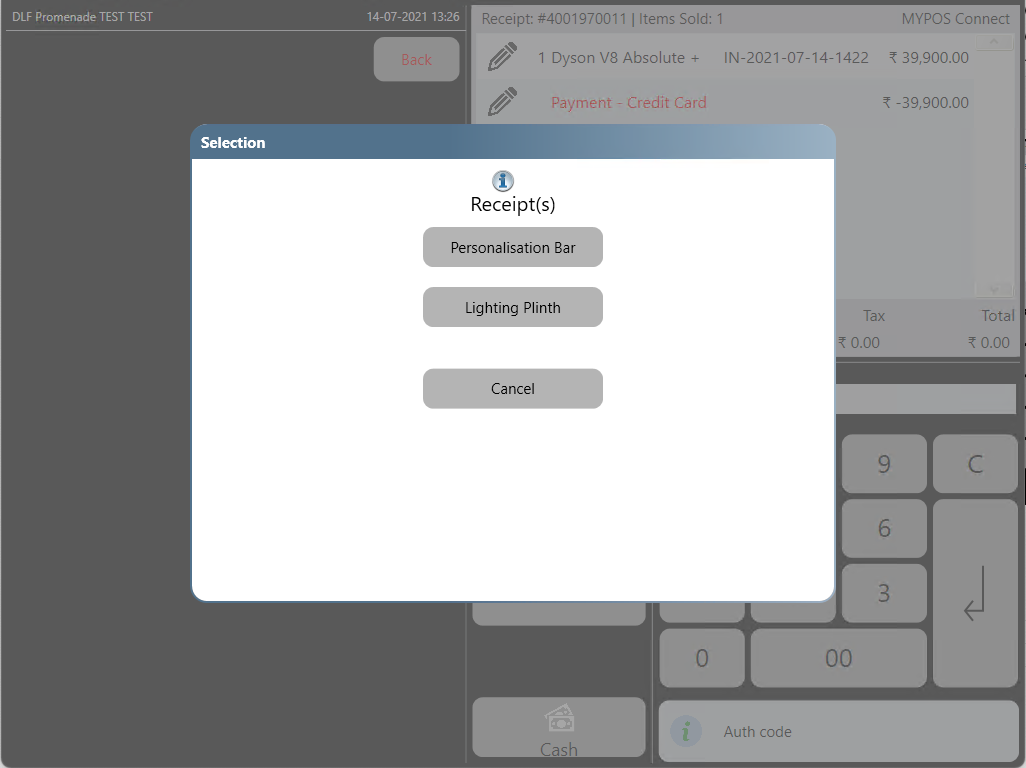
If the payment was for the full or remaining value of the sale the sale will complete automatically and a receipt will be printed, if there is still a balance to pay MYPOS will record the payment made and take you back to the payment screen again allowing you to select another method to pay the outstanding balance.
COD Payment
For Warehouse/Home Delivery Orders the only available payment method with be COD (Cash On Delivery)
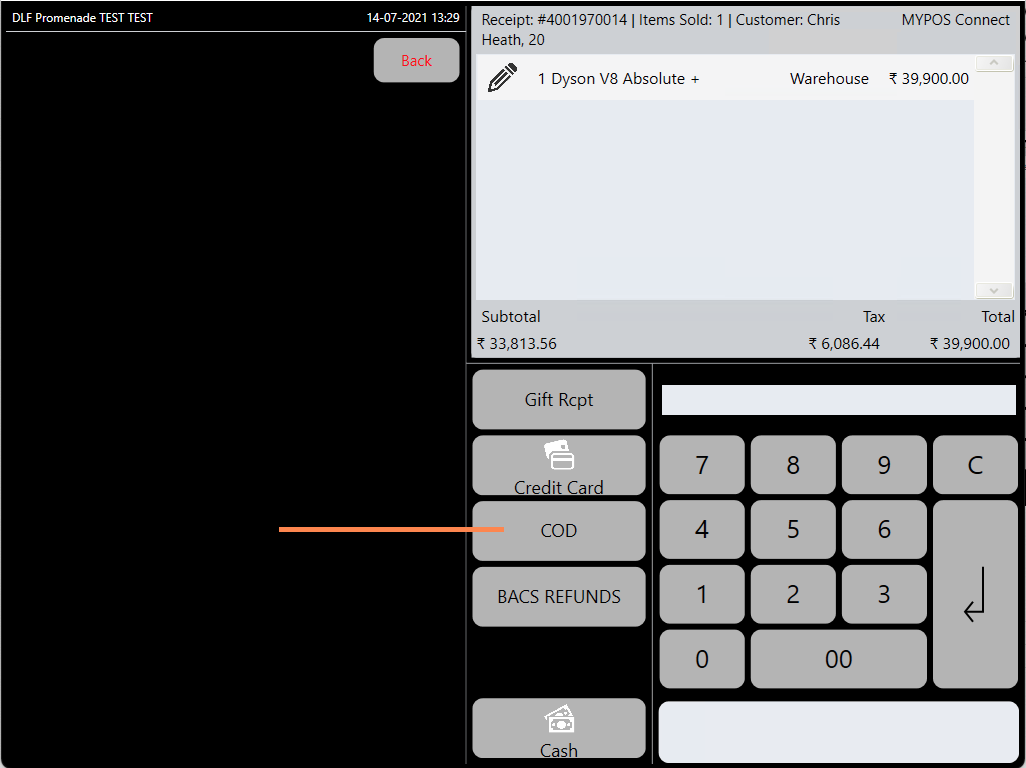
As a COD payment is only available for home delivery orders the sale must have a customer added to it , press the "COD" button and a pop up screen will appear allowing you to select a Receipt Printer to use for stores with more than one receipt printer
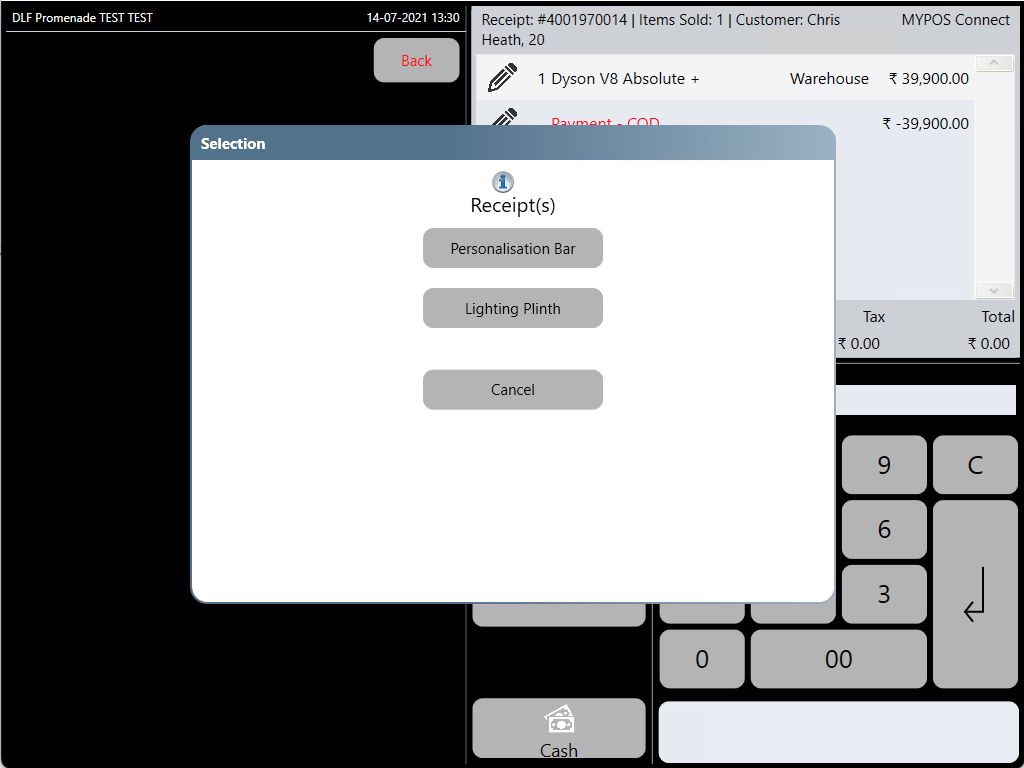
If the payment was for the full or remaining value of the sale the sale will complete automatically and a receipt will be printed, if there is still a balance to pay MYPOS will record the payment made and take you back to the payment screen again allowing you to select another method to pay the outstanding balance.
Invoice Print
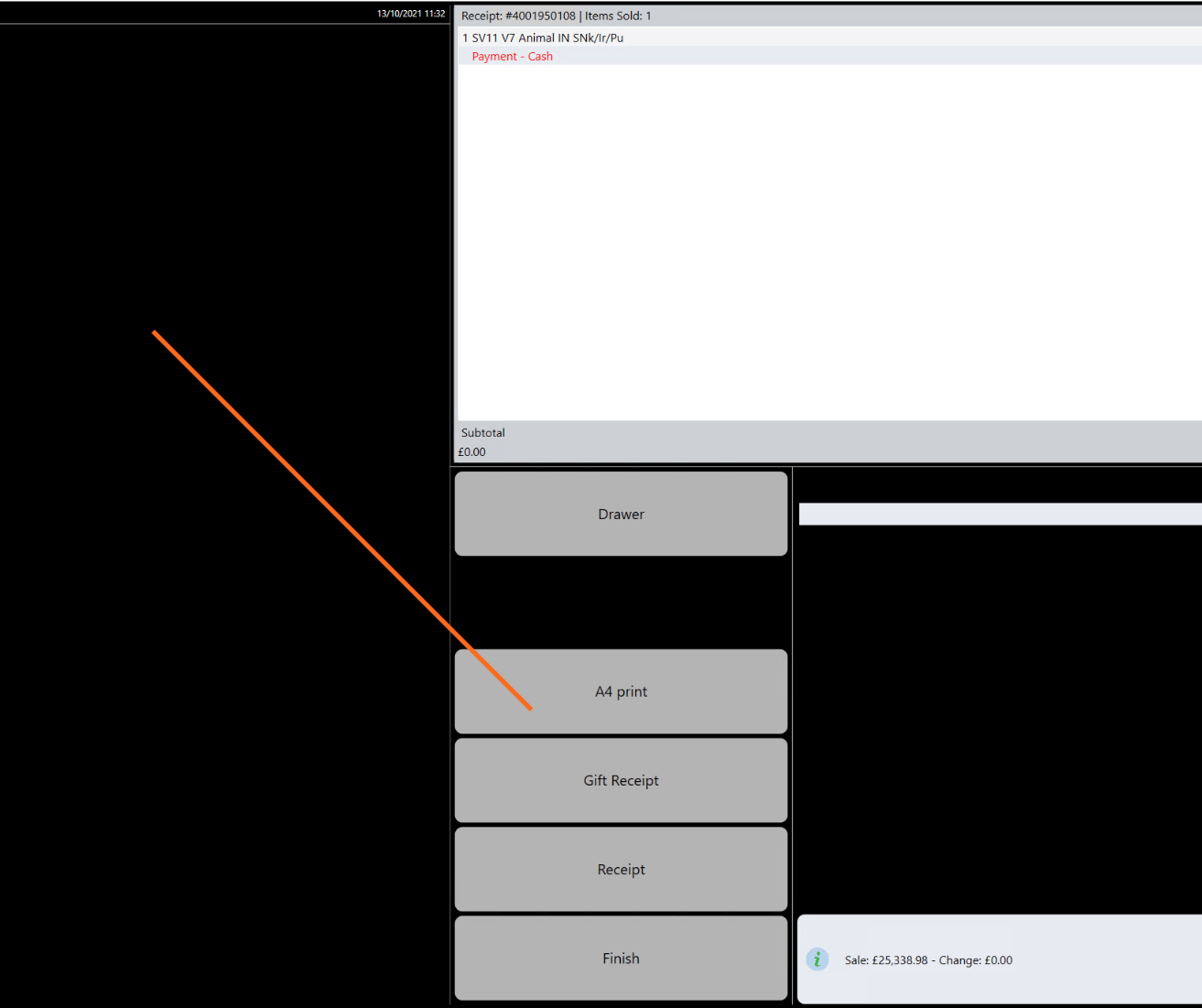
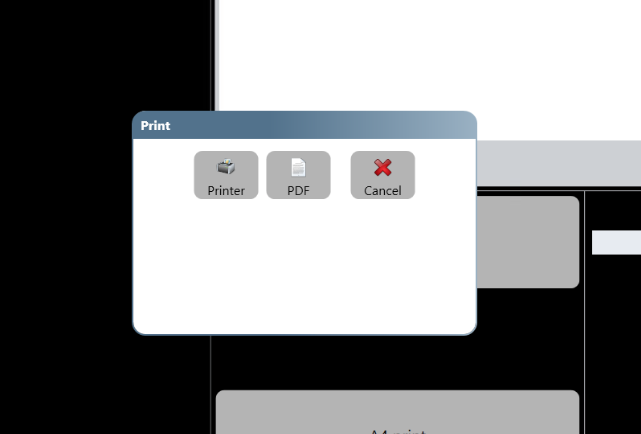
Once the payment is complete an optional A4 Invoice print is possible, to print select the 'A4 Invoice' option on the final screen of the transaction, a pop up will appear allowing you to choose to print to pdf or a real printer, select the correct one, then select the printer and the A4 Invoice will be printed
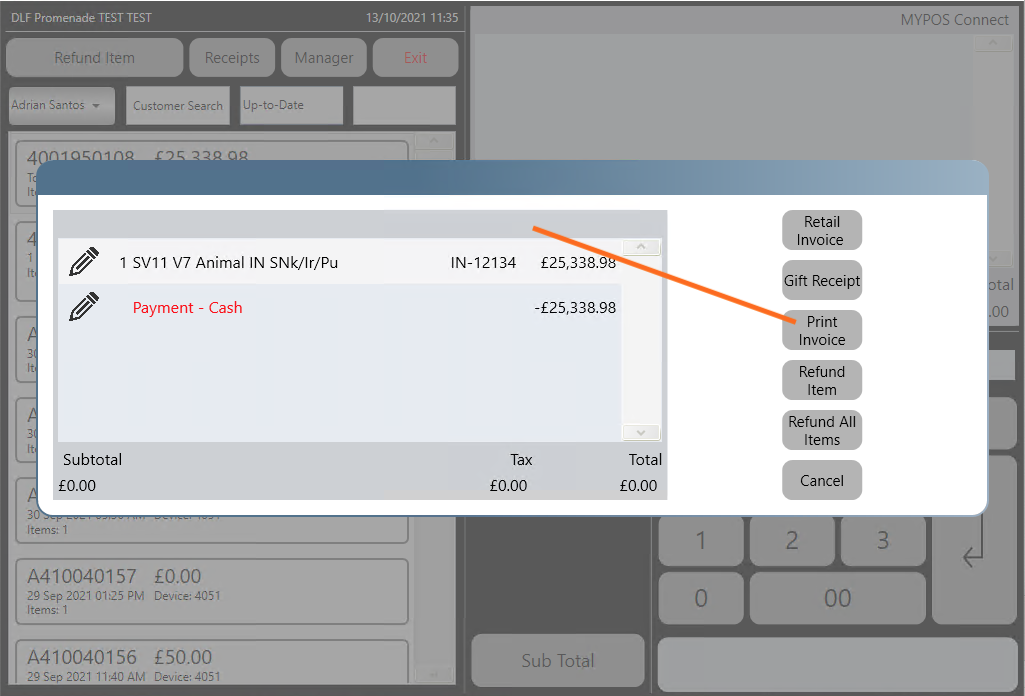
Alternatively an A4 invoice can be printed by pressing the 'receipt' button or scanning the receipt barcode and locating the correct receipt, then choosing the 'Print Invoice' Option