0
0
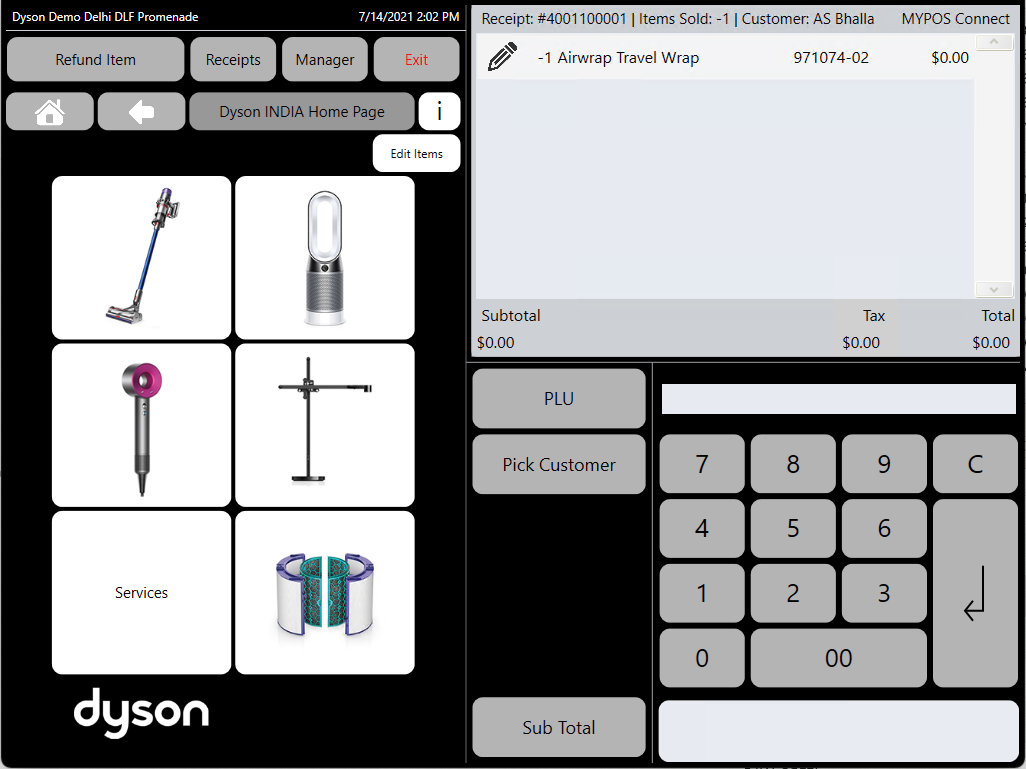
To Start a Refund log into MYPOS with your User Code and passcode scan the barcode from the bottom of the customers receipt using the barcode scanner on the iPad,
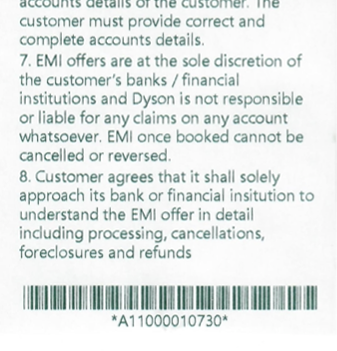
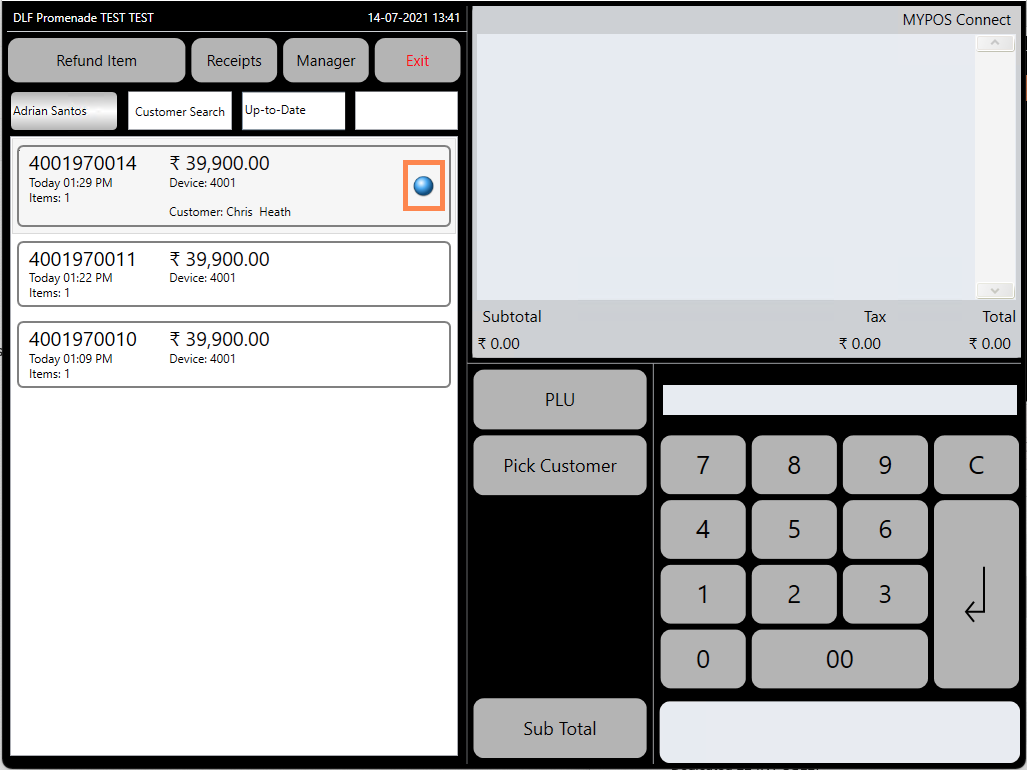
alternatively if the customer doesn't have the receipt you can look up the receipt manually by selecting the 'Receipts' button from the Main Menu Page
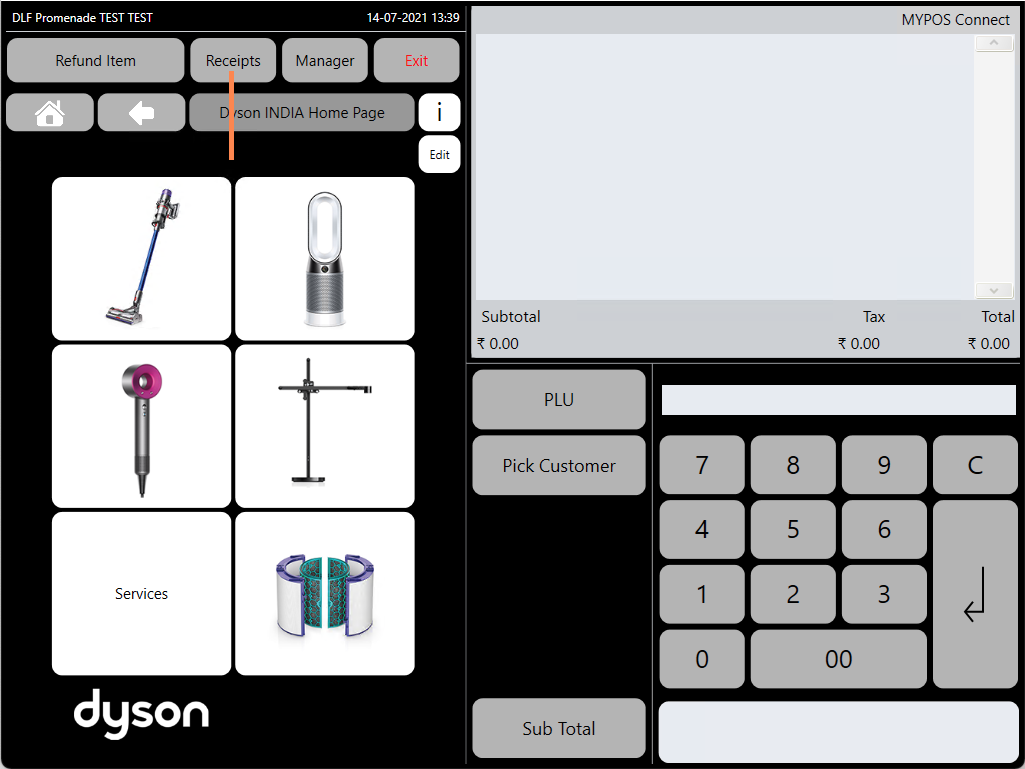
You can scroll through the list of receipts manually to find the correct one, or you can enter the receipt number, pick the date purchased, search by customer name or by the name of the employee who sold the item
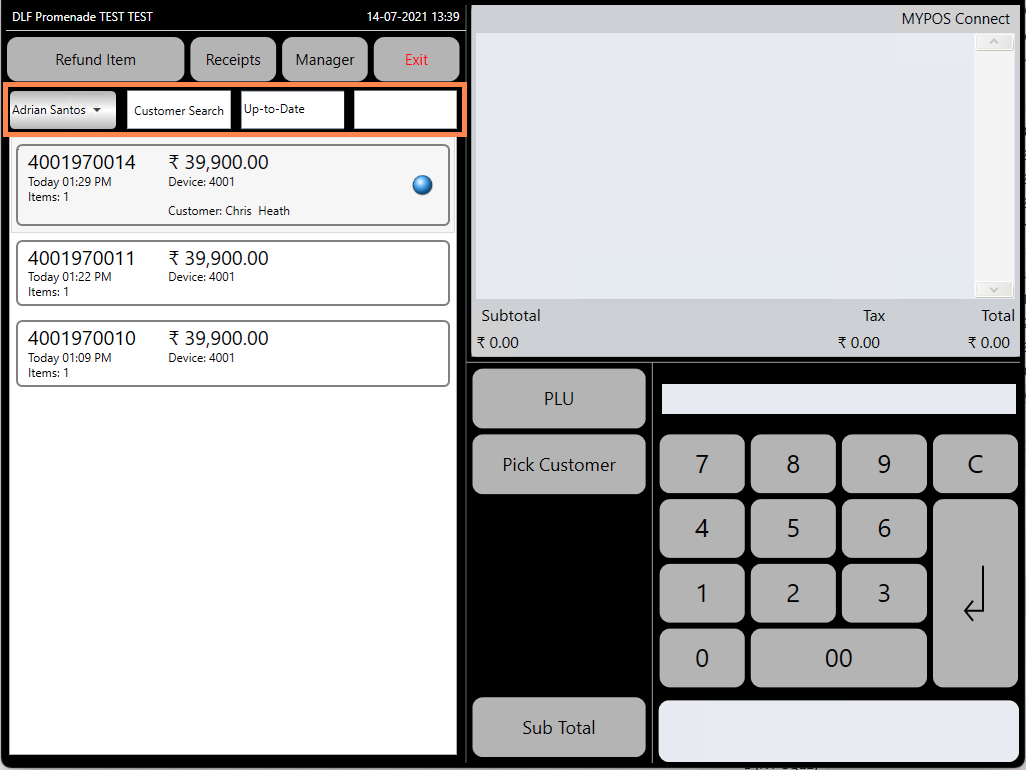 Once you have located the correct receipt, press the small blue dot on the right hand side of the receipt to load the refund options
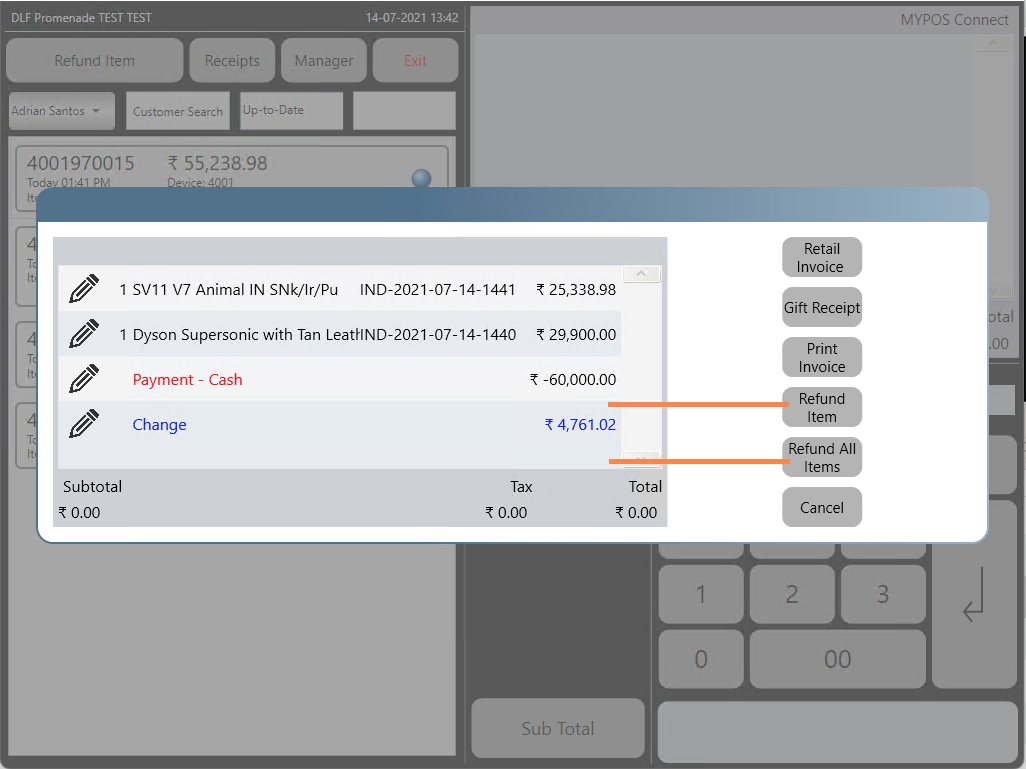
To Refund a single item select the item to be returned and press 'Refund Item' button
To Refund multiple items on the receipt or all items press the 'Refund All' button
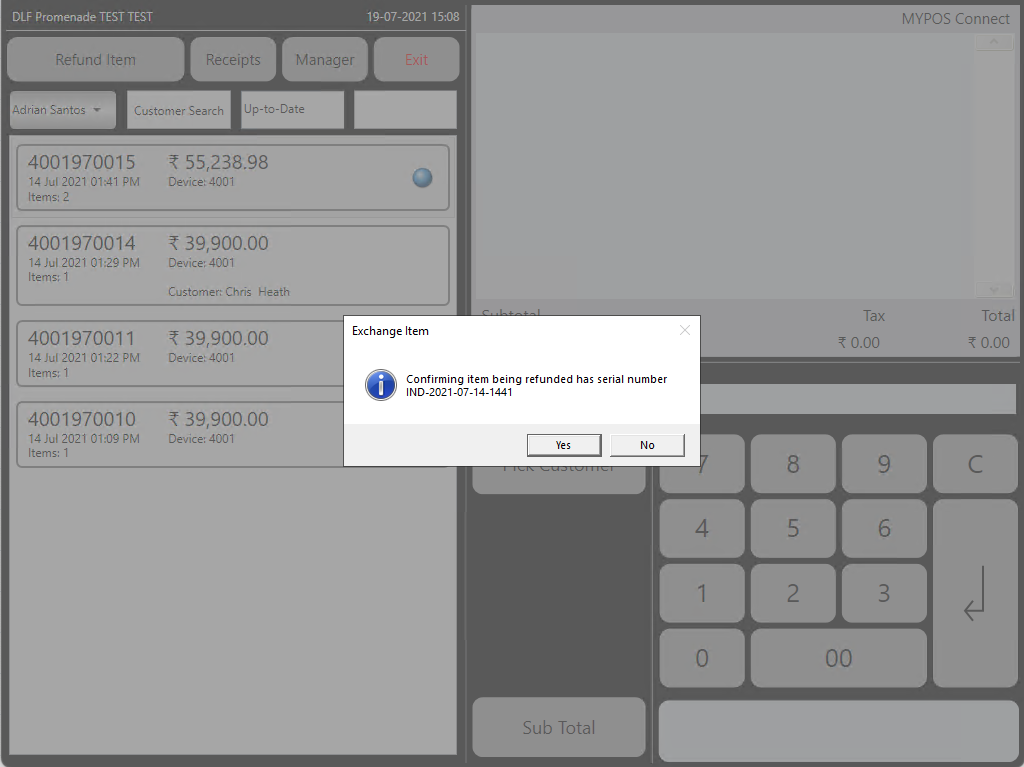
If 'Refund item' is chosen a Pop Up window will appear to remind you to confirm that the serial number being returned matches the serial number of the item on the original sale,
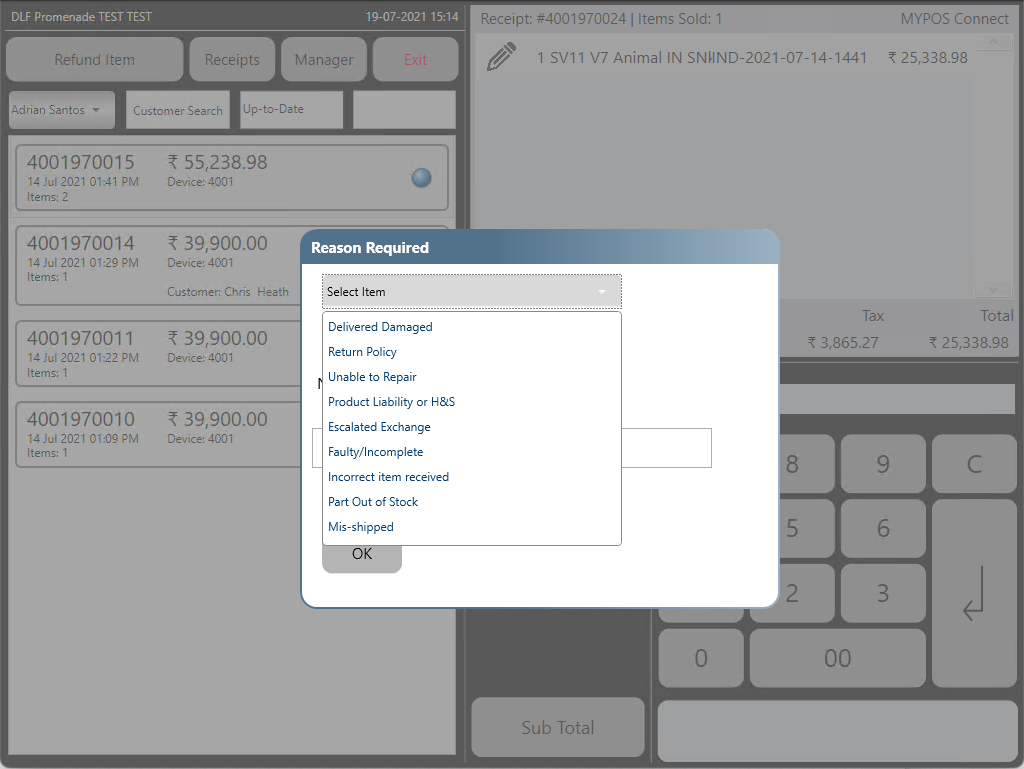
Select a Refund Reason from the drop down list and press 'ok'
If 'Refund All Items' was chosen a pop up window will appear reminding you to check the serial number for the refunded items matches the original sale
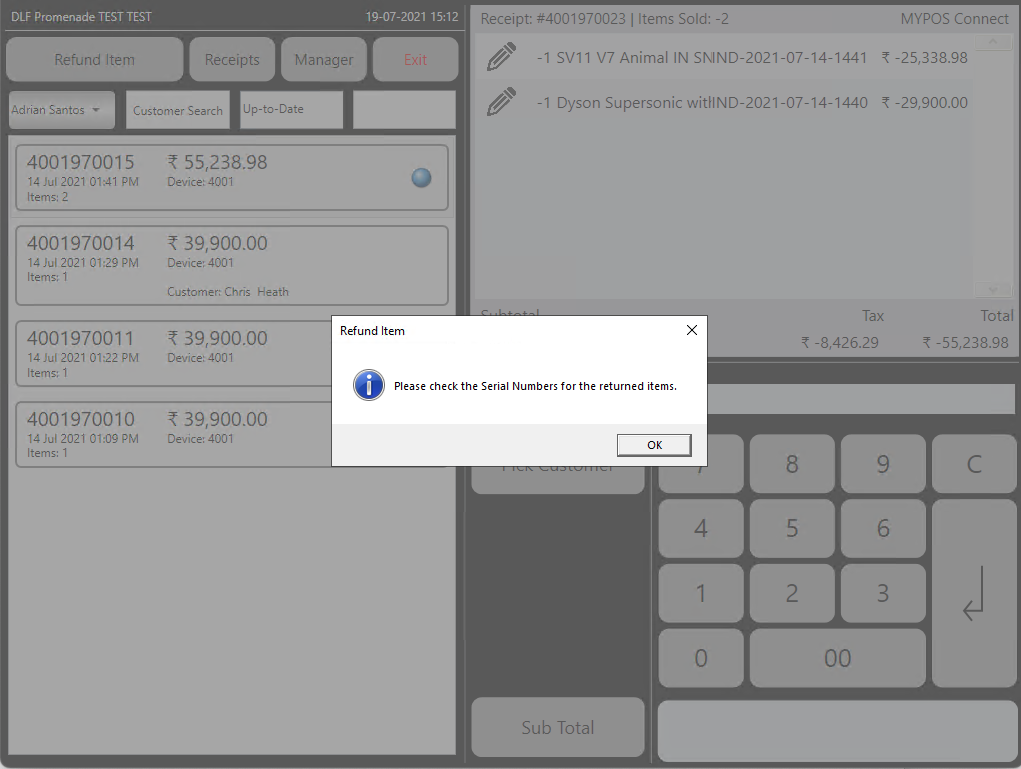
The Refunded item will appear in the till roll and the refund can then be sub totalled and refunded in the same way as the original sale