


 0
0
ntegrated Adyen Pay by Link enables a customer to pay for a product via an emailed payment link that is sent directly from the MYPOS interface rather than the customer paying via the in-store Adyen Pinpad,
Paid orders will be displayed in a new 'Fulfilment' menu allowing you to allocate serial numbers to items to complete the transactions when the products are collected
Selling a Product via 'Pay By Link'
To start an 'Adyen Pay by Link' Payment, first login to the MYPOS interface as normal
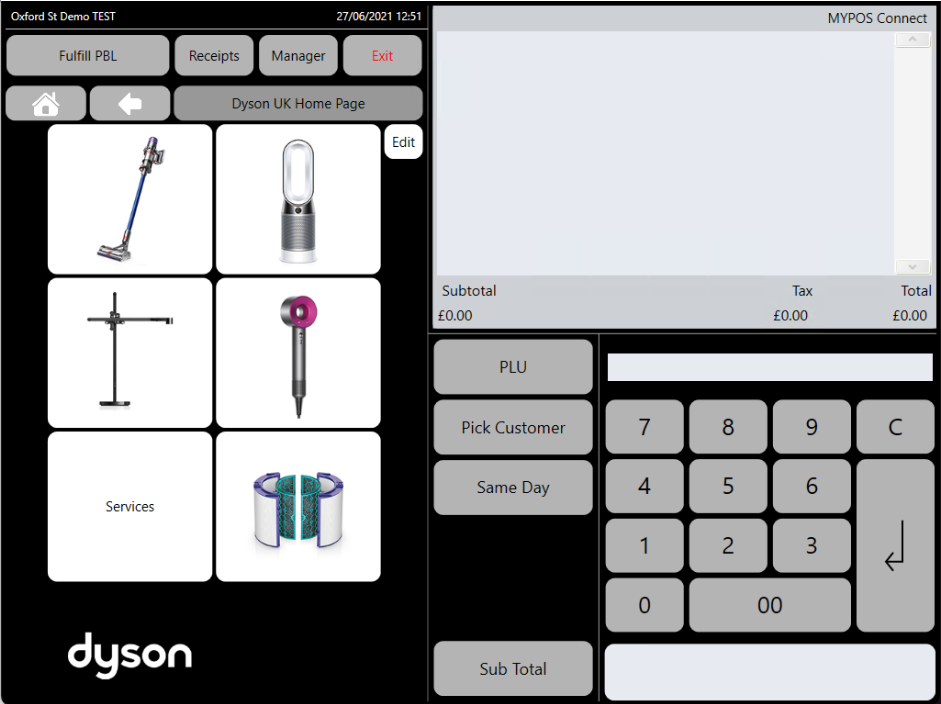
Ring in the products you want to sell as normal via either the menu buttons, PLU lookup or by scanning the products barcode
Do not select either the 'Record Serial Number' or 'Ship from Warehouse' options, instead select 'Pay by Link Click and Collect' for an order where a customer will collect the products in person or 'Pay By Link Ship from Warehouse' where the products will be delivered from the warehouse to the customer address
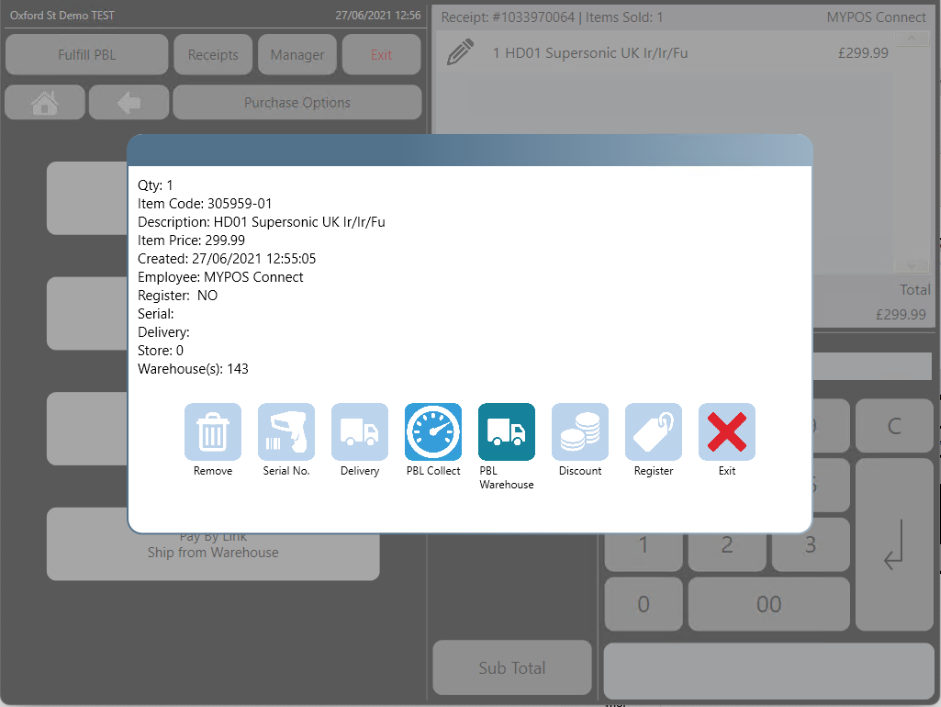
alternatively for each product select the pencil icon next to the product listed in the till roll and choose either 'PBL Collect' or 'PBL Warehouse'
PBL Collect - this is for a Pay by link transaction where the customer will collect the products from the store in person
PBL Warehouse - this is for a Pay by link transaction where the products will be delivered from the warehouse to the customers address
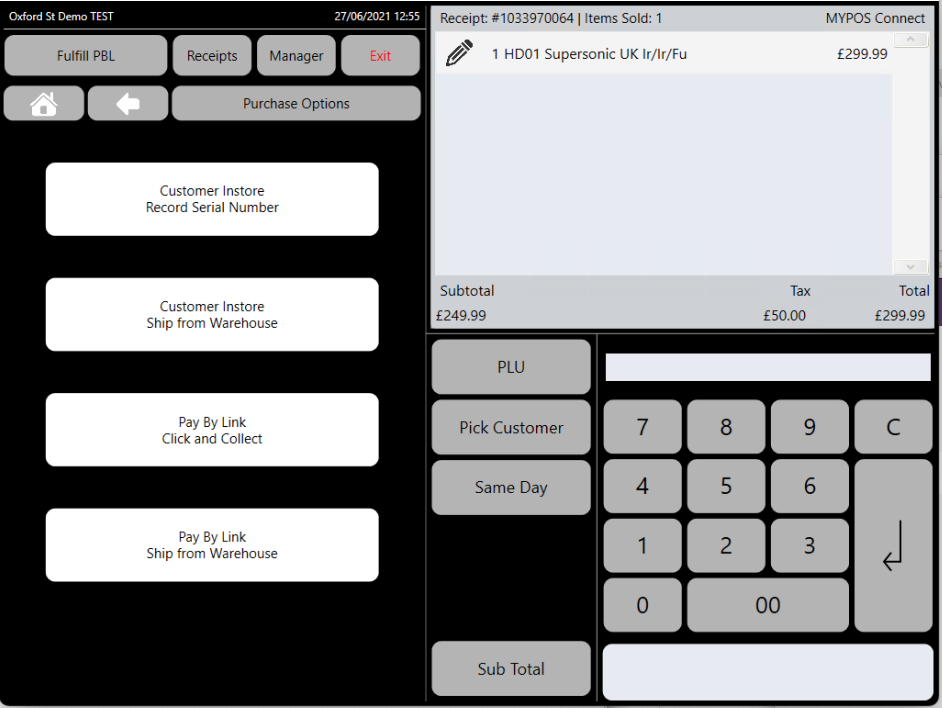
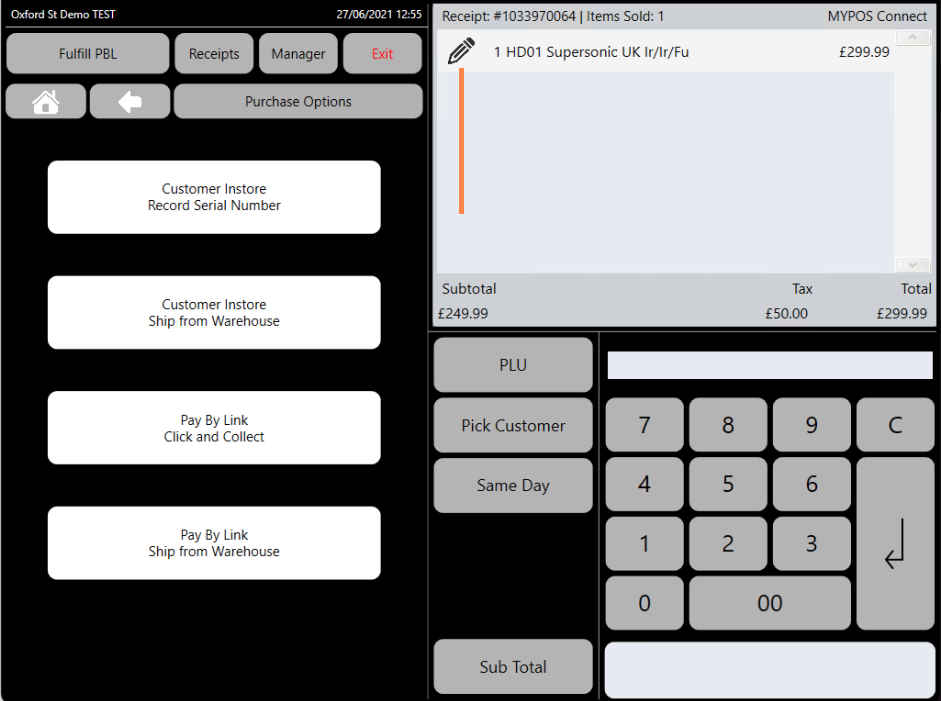
Pay by Link transactions can't be mixed with any other type of transaction on the same sale, so you can't have a normal in store and PBL warehouse order in the same transaction for example, the system will check for conflicting order types when the 'Sub Total' button is pressed and highlight the issue preventing you from continuing the sale until it has been resolved.
A Pay by Link transaction will always require a customer with an email address be added to the sale, to do this press the "pick customer" icon
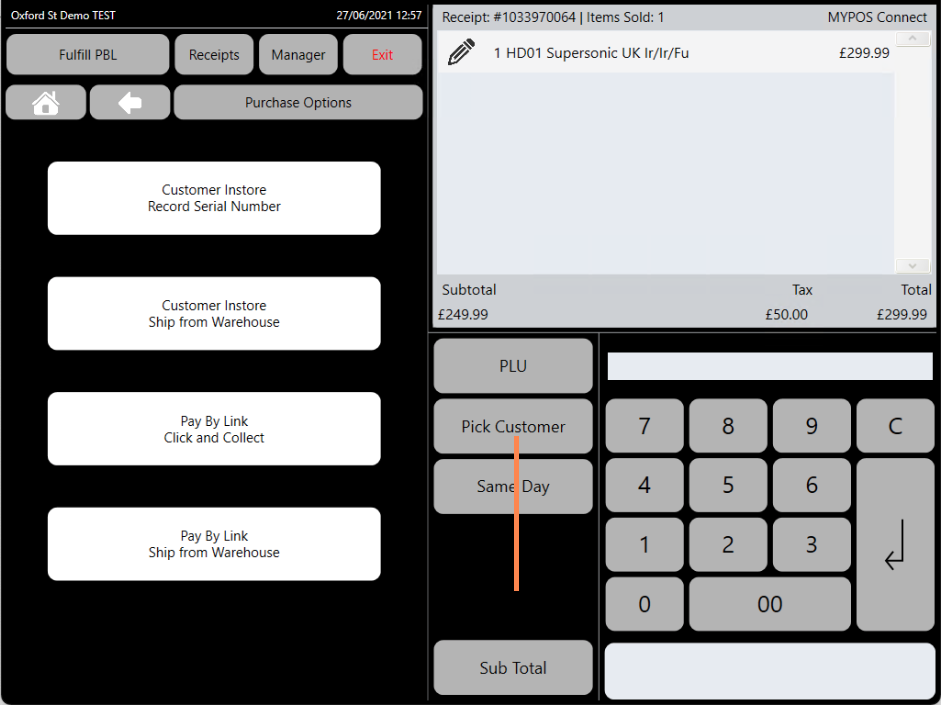
Here the user can either add an existing customer or add a new one in the same way as a normal in store transaction
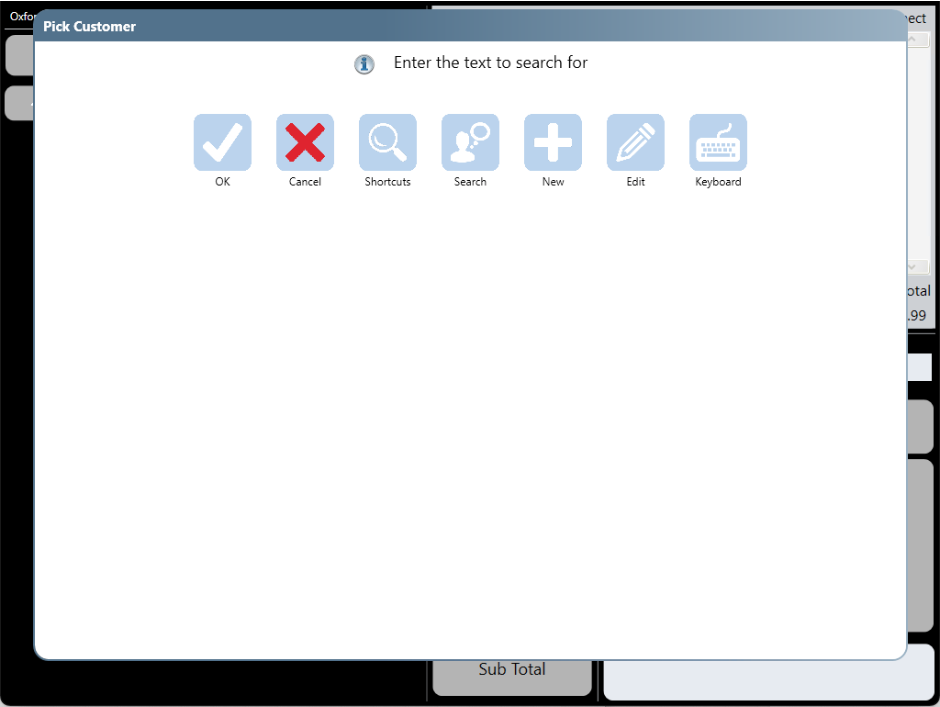
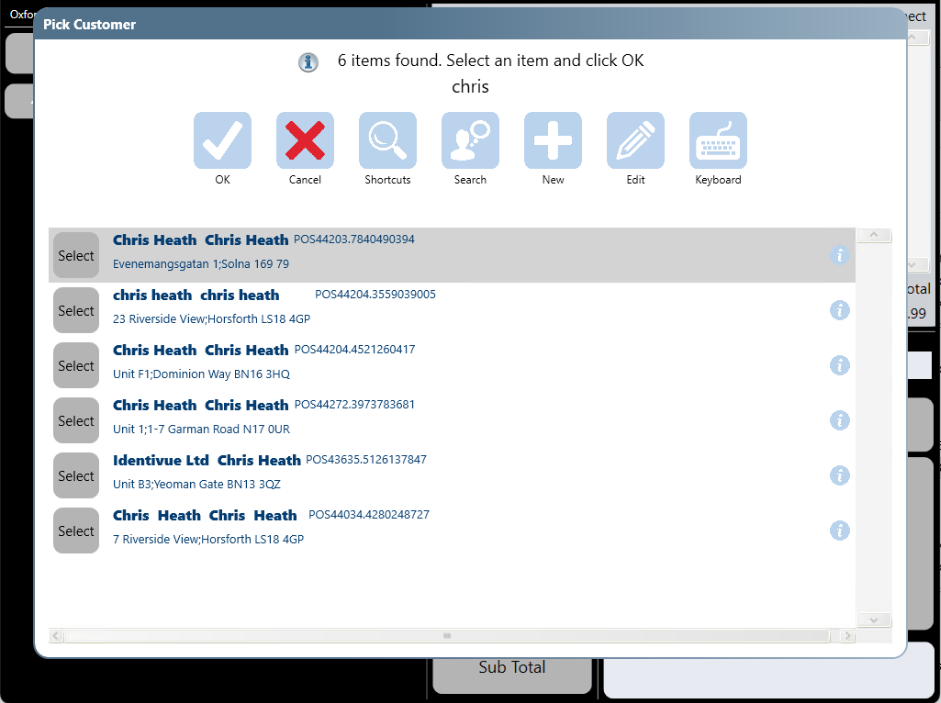
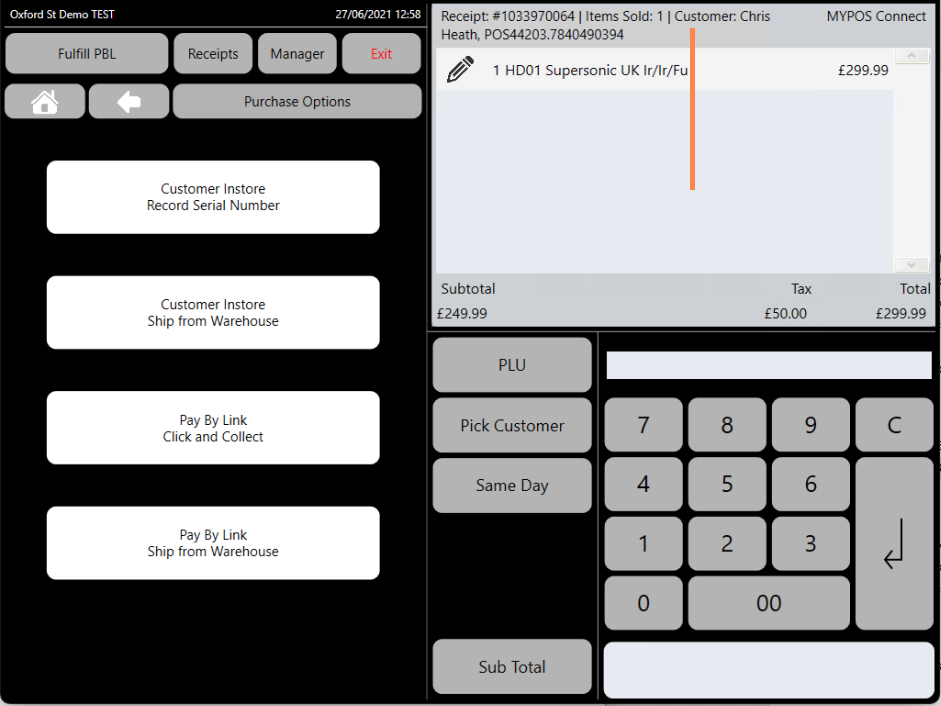
Once a customer has been added, the customer's name will show at the top of the till roll
Once all of the Pay By Link items have been rang up and a customer with email address added you can press the sub total button as normal, the till will prompt you to confirm that a Pay by Link email should be sent, once yes is selected the email will be send to the customer within a short period of time and the transaction will be held until the payment has been made, PBL Payment links are valid for XX number of days before they expire.
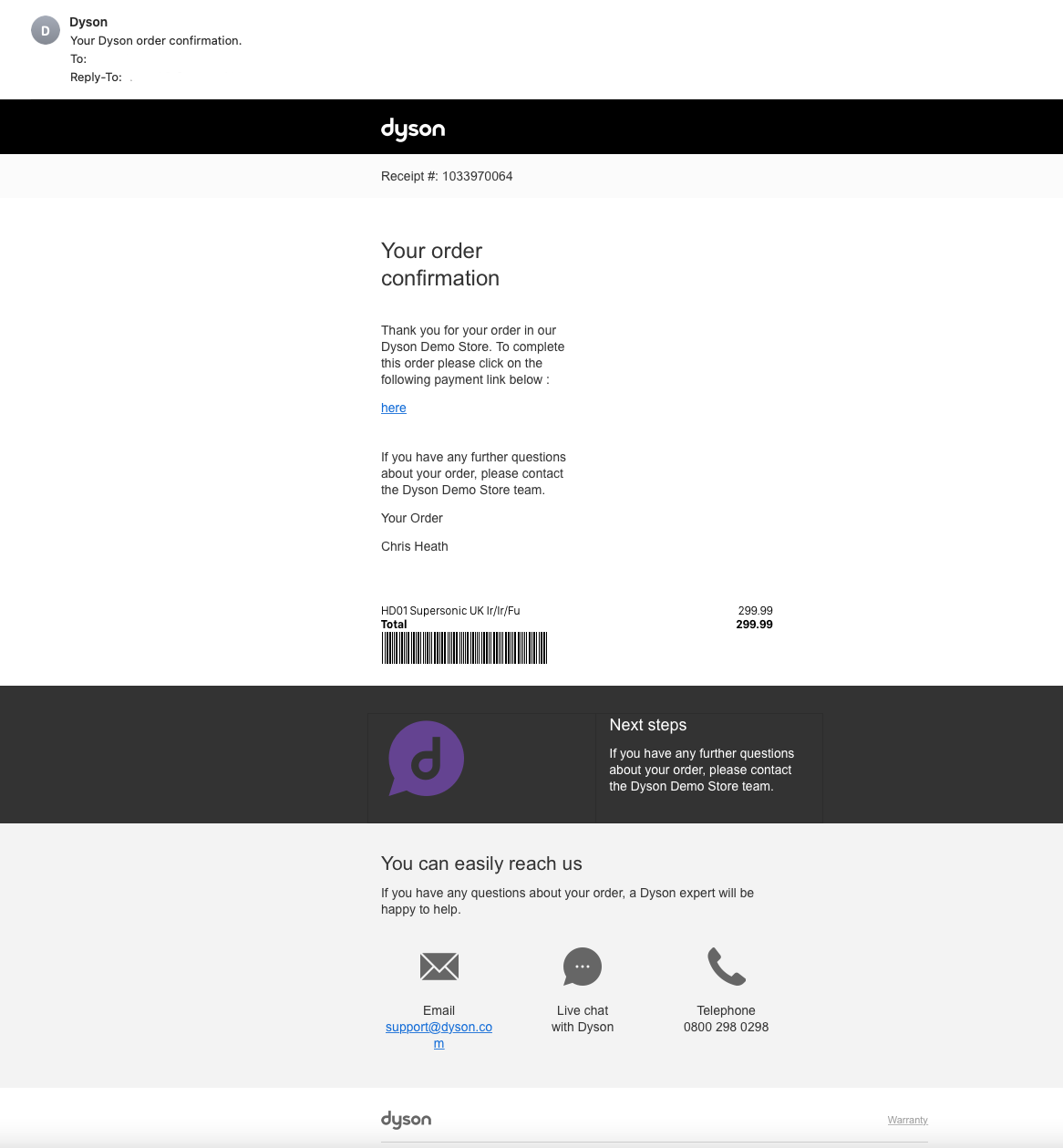
Fulfilling a Pay by Link Sale (Warehouse)
To Fulfil a 'Adyen Pay by Link' Warehouse sale no further action is required on the part of the expert, once the customer has made the payment the sale will be automatically processed and dispatched , the completed sale can be looked up in the Receipt Lookup function as normal
Fulfilling a Pay by Link Sale (Collection)
To Fulfil a 'Adyen Pay by Link' in store collection sale login to the MYPOS interface as normal
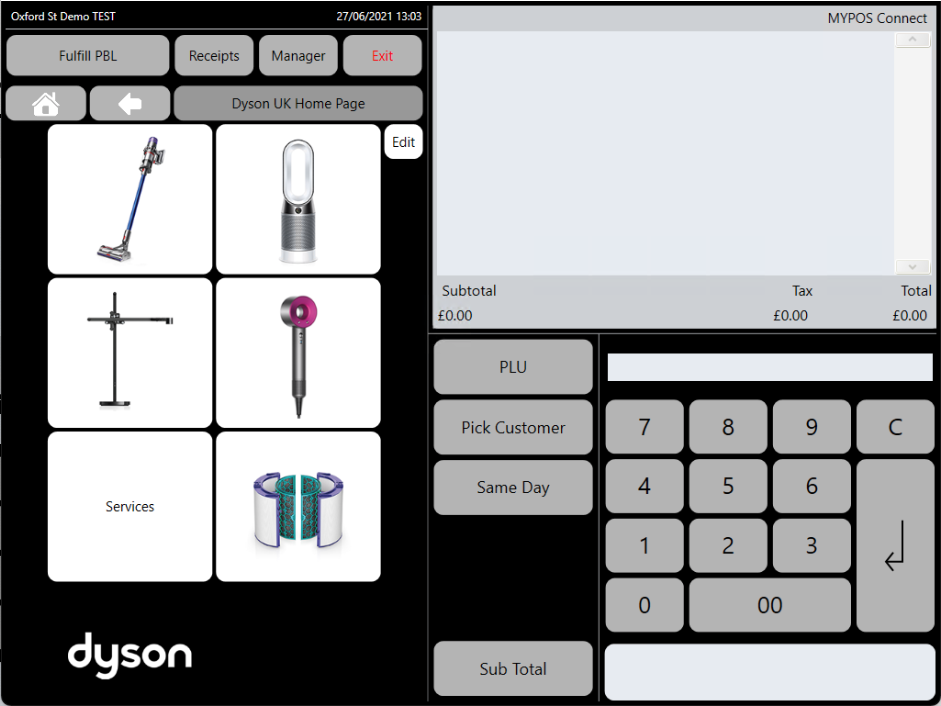
Select the 'Fulfilment button at the top of the screen "Fulfil PBL" , this will bring a screen up showing a list of all PBL orders that have been paid for and can be fulfilled.
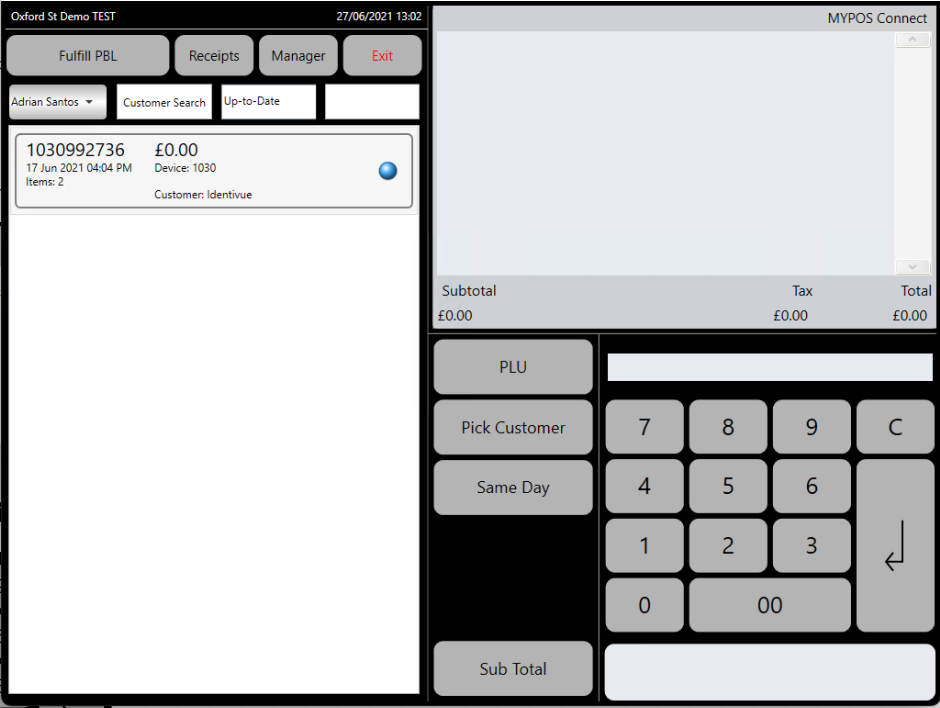
Select the order you wish to fulfil by pressing the blue dot, pick the item you want to fulfil first and press PBL Serial# , this will then prompt you to enter or scan the products serial number
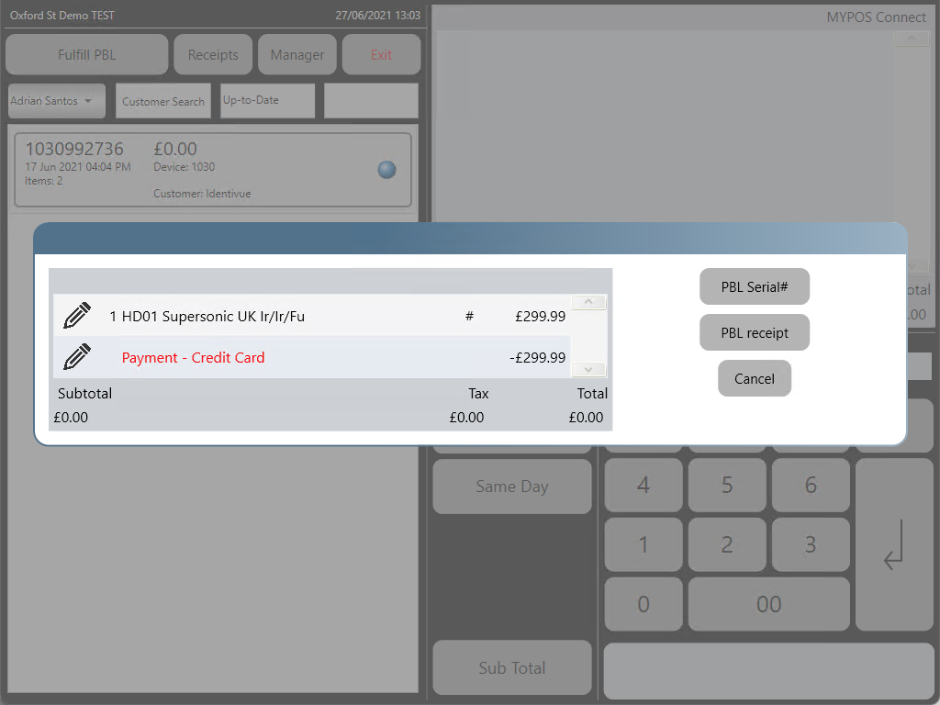
Repeat this step for any outstanding items on the order
For any Items without a Serial Number, for example spares and accessories a # should be entered as the serial number
Press the "PBL Receipt" button, a prompt will appear to confirm you want to print the receipt and finalise the transaction, press "Yes"
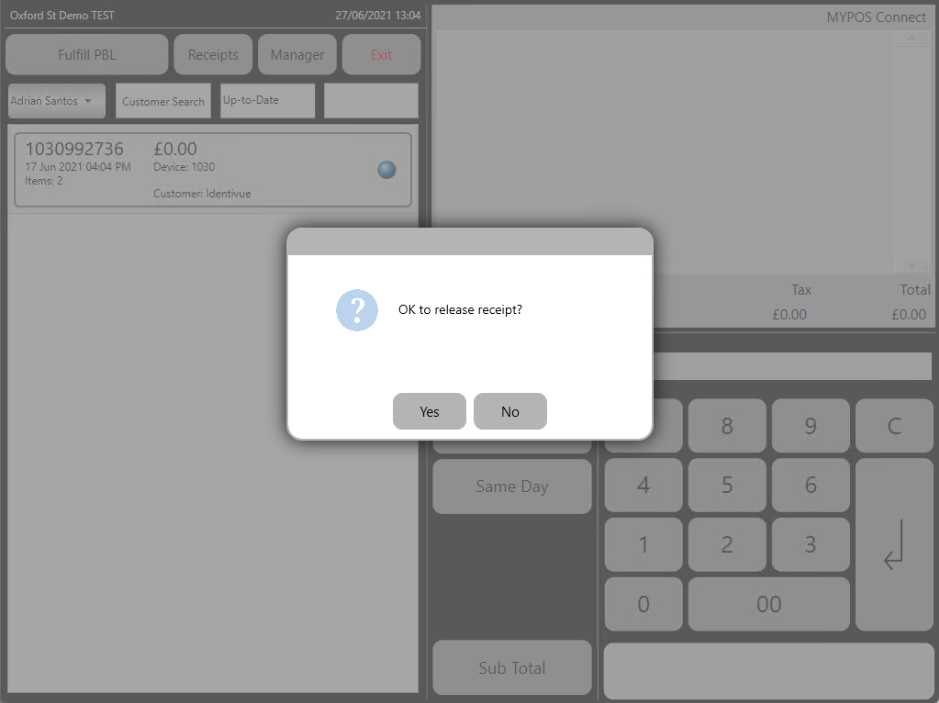
The Receipt for the Sale will print and the transaction will be closed.

