0
0
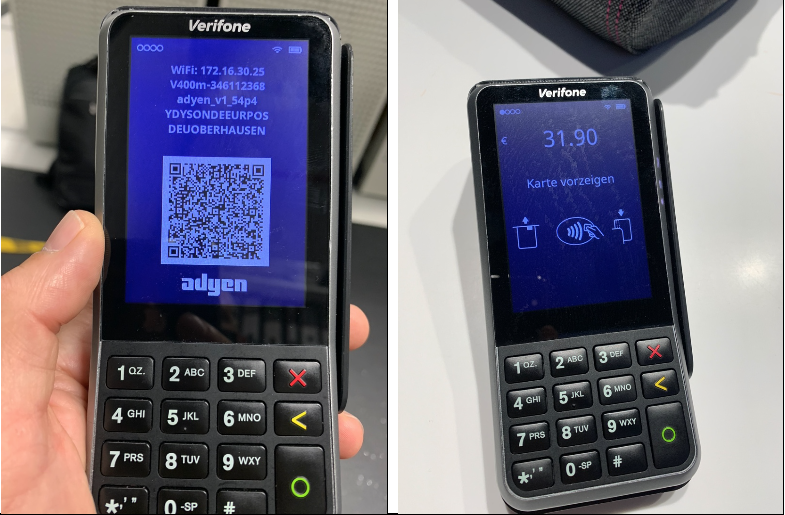
We start by ensuring that the Adyen terminals are connected to the correct Wi-Fi within the Dyson Demo. To get the terminals online on the correct Wi-Fi, we need to:
• Press the yellow <
• Press 159
• PIN and green O
• Select Network
• Select 2 Wi-Fi
• Search for PT100
• Enter the P’wrd
The password is deliberately complex – we know and understand from our own experience it might take a couple of attempts to get it correct!
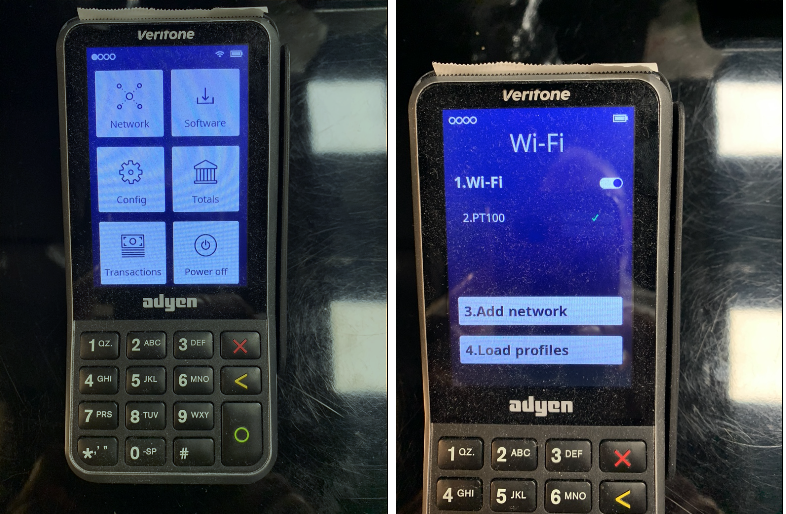
We then need to first disable the Cellular function on the Adyen terminal, to do this:
• Press the yellow <
• Press 159
• PIN and green O
• Select Network
• Select 4 Cellular
• Select 1 to turn off
Turning off the Cellular can take up to a minute to complete.
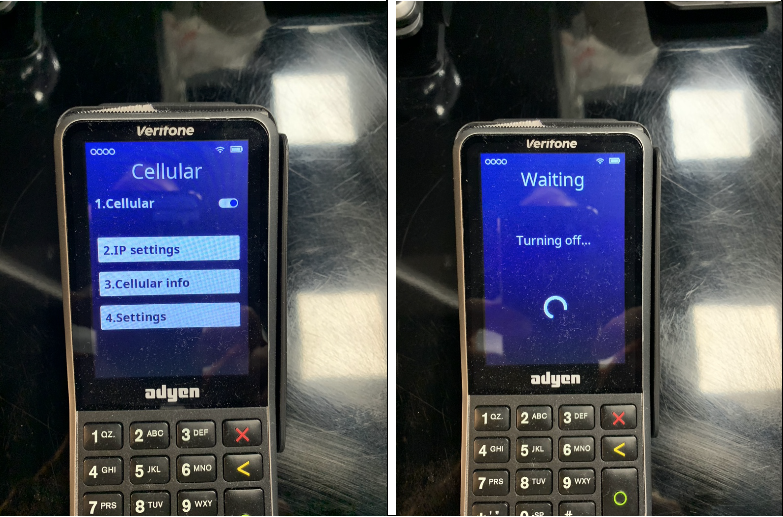
We then need to remove any other Wi-Fi networks, to do this, we need to:
• Press the yellow <
• Press 159
• PIN and green O
• Select Network
• Select 2 Wi-Fi
• Search for any other networks – there should just be PT100
• Enter the number of the other network (e.g. 3 MD100)
• Select 4 Remove.
!! In the pictures below there is only the PT100 Wi-Fi network -please do not delete this Wi-Fi network!!
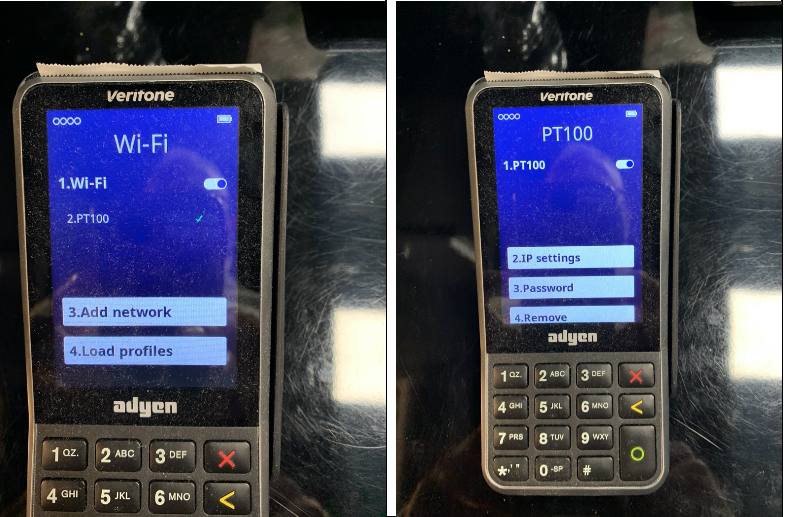
We then need to fix the IP address on the Adyen terminal, to do this:
• Press the yellow <
• Press 159
• PIN and green O
• Select Network
• Select 2 Wi-Fi
• Select 2 PT100
• Select 2 IP Settings
• Untick the DHCP box <<< this can be tricky to un-select as it’s small
• Scroll down the screen, select Apply
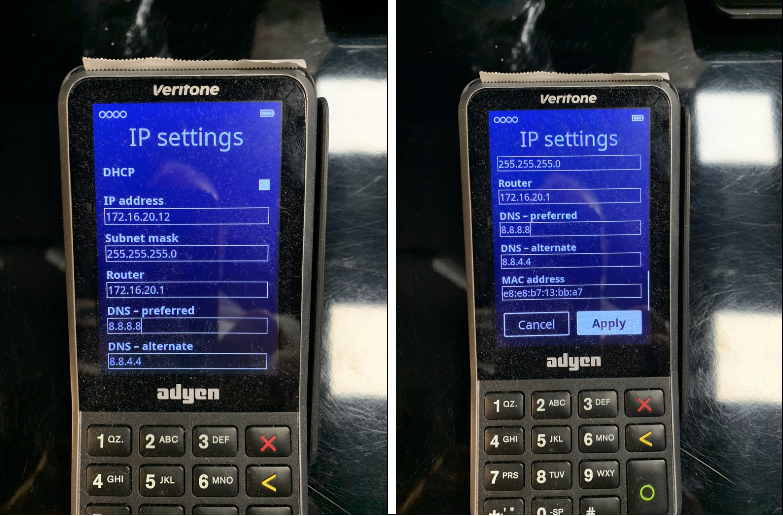
We then need to update the configuration on the Adyen terminal, to do this:
• Press the yellow <
• Press 159
• PIN and green O
• Select Config
• Select 1 Update
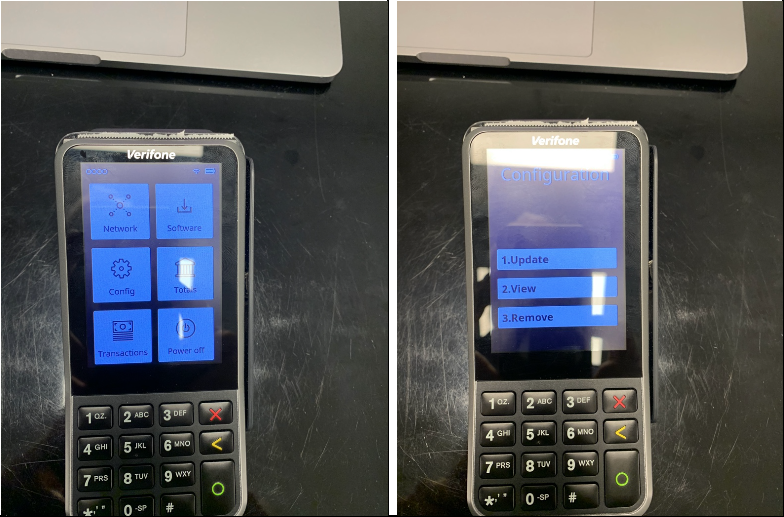
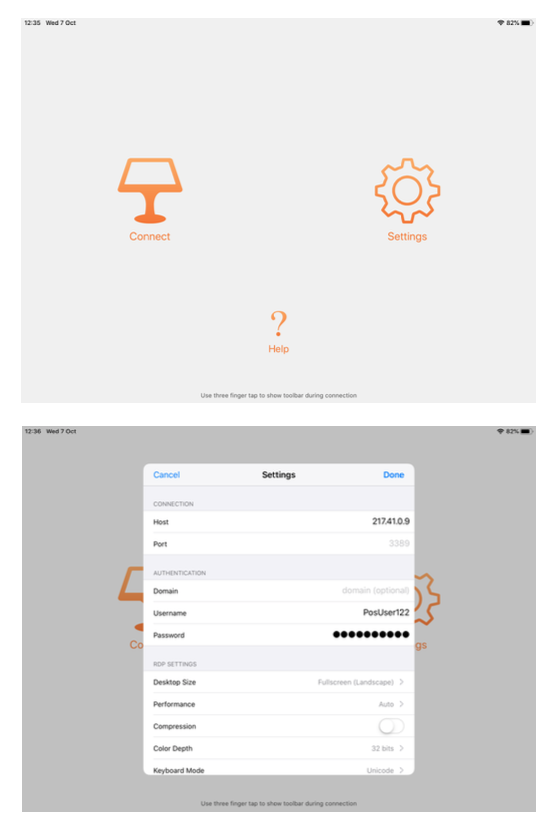
We then need to identify the iPad, so that the MYPOS team can start the upgrade, to do this:
• Open MYPOS on the iPad
• 3 finger tap the screen to open the iOS keyboard
• Select the keyboard in the bottom right corner
• Select Disconnect
• Select Settings
• Identify the Username
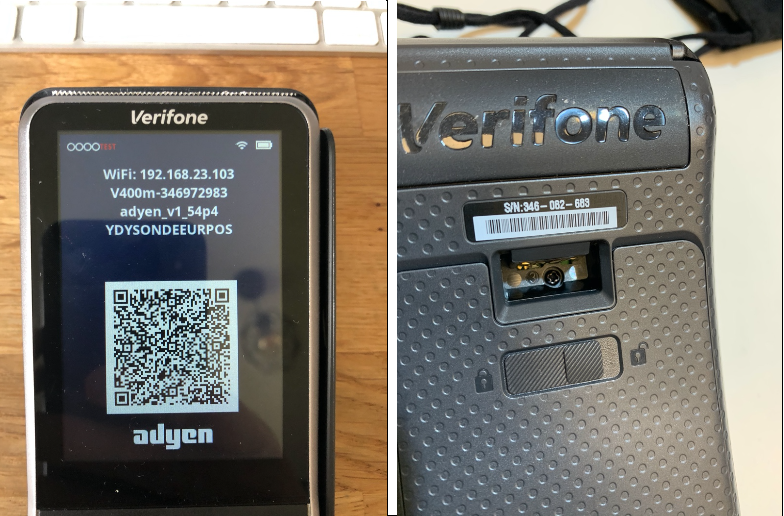
We then need to identify the Adyen terminal, so that the MYPOS team can complete the upgrade, to do this:
• Press 5 followed by Green O
• The 1st line displayed is the IP Address
• The 2nd line displayed is the Serial Number – this will match the number on the rear of the Adyen
terminal
To finish the set up, we need to test that the MYPOS Adyen Integration works.
• Start a sale in MYPOS on the iPad – we suggest selecting an accessory as this does not require a serial number or customer registration.
• Select subtotal in MYPOS
• Select Adyen in MYPOS
• Press 5 and the Green O on the Adyen terminal
• Scan the QR on the Adyen terminal
• Check the payment has been passed to the Adyen terminal