


 0
0
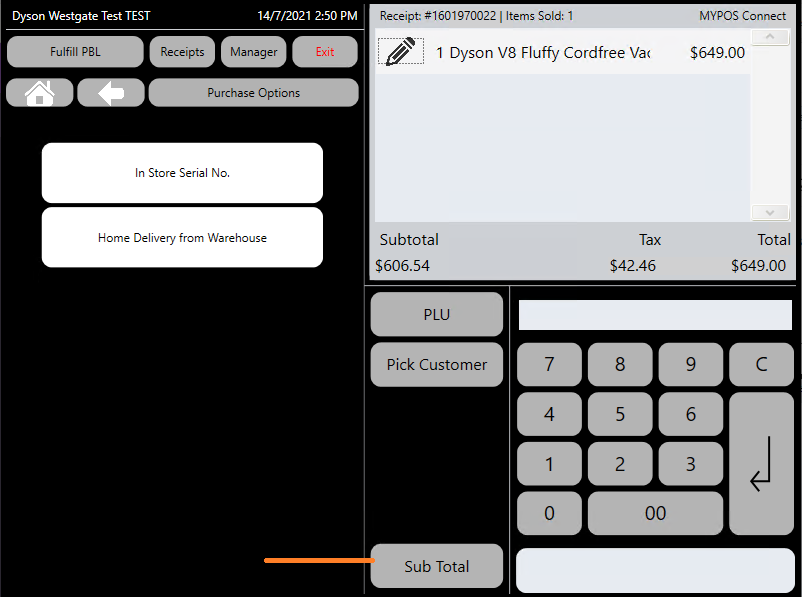
After the Product(s) have been scanned/selected, the customer has been added and the serial numbers/warehouse delivery options have been selected you are ready to proceed to the payment stage.
Select the 'Sub Total' button on the MYPOS interface
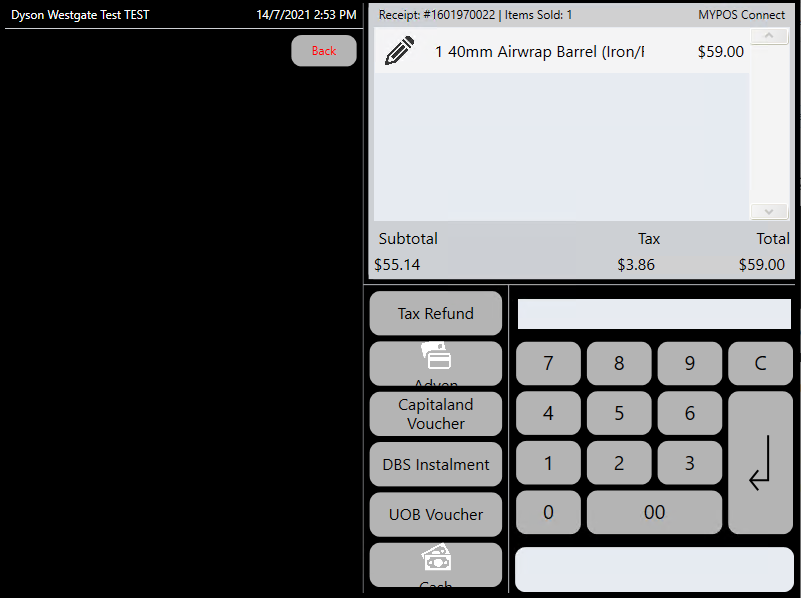
Depending on your store one or more payment methods may be displayed, this might include 'Adyen/Credit Card' , Cash, Instalment Payments
Cash Payment
If the customer is paying Cash, type in the amount of cash the customer has given you into MYPOS using the keypad on the MYPOS screen and the press the 'Cash' payment button, if your store has more than one cash drawer and/or more than one receipt printer a pop up window will appear to let you select firstly the Receipt Printer then the Cash Drawer you want to use for the sale.
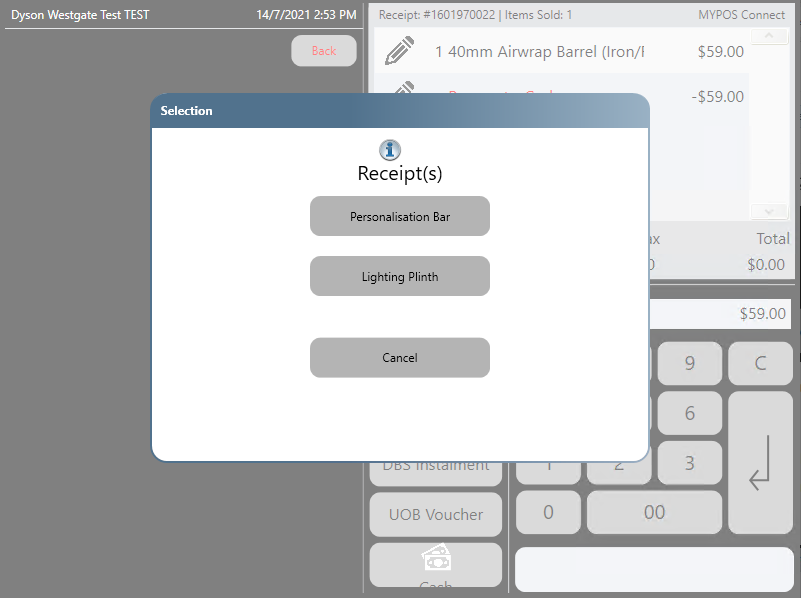
The Change to give to the Customer will then be displayed, a receipt will print from the selected printer and the cash drawer will open
A Cash Payment will open the Cash Drawer!
Make sure you are stood near to the cash drawer you are going to select before you press 'Cash'
Credit Card/Digital Wallet Payment
To Take a Payment via credit card or Digital Wallet you will need an Adyen Payment terminal in addition to the iPad, once you have an Adyen Payment Terminal type the amount the customer is going to pay by Card/Digital Wallet and press the 'Adyen' button
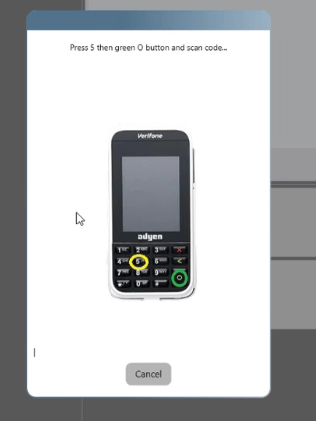
A Pop up window will appear prompting you to press the '5' key and the 'Green Circle' key on the Adyen terminal , depending on the software version in use on the Adyen device you might then need to press the small blue QR Code picture in the bottom left hand corner of the screen
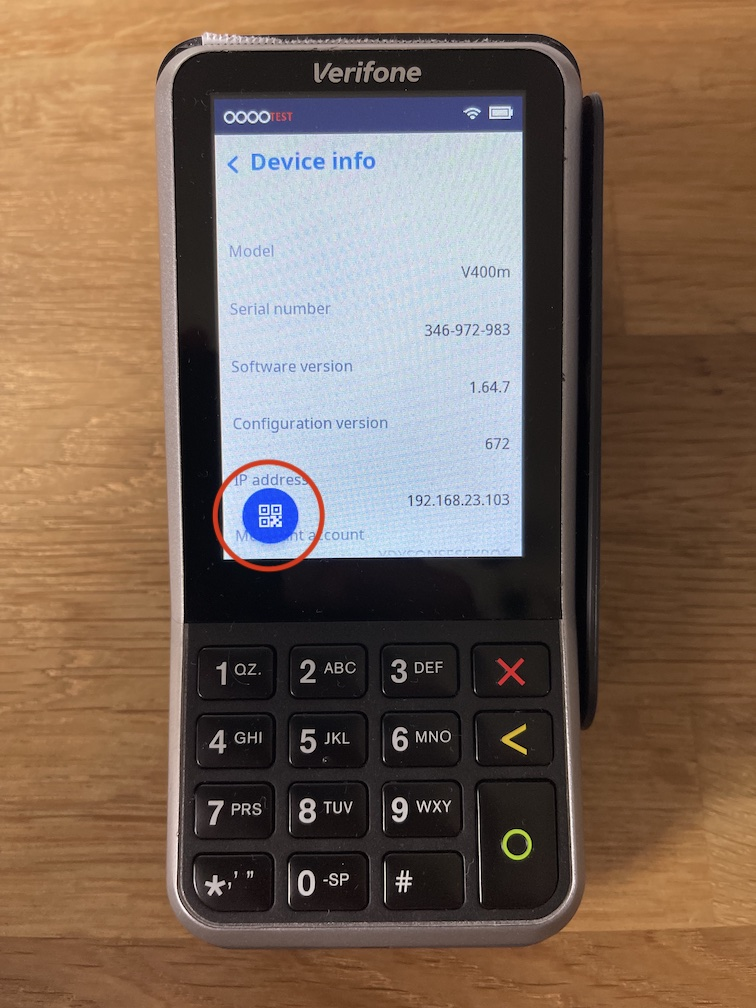
A QR Code will appear on the Adyen device, you should then scan this QR code with the barcode scanner on your iPad, this will identify to the iPad which Adyen device you want to use
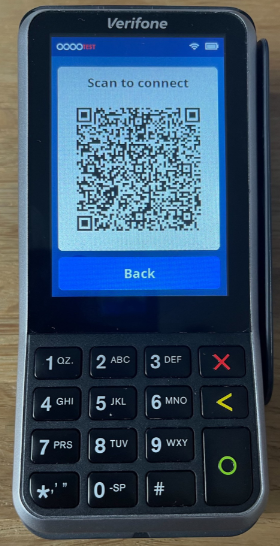
The Payment amount will be send to the Adyen device automatically, the customer should then follow the prompts on screen on the Adyen device to complete payment via Credit Card/Digital Wallet, once the payment is complete the customer will be prompted to remove their card (if applicable) and a customer and merchant copy of the receipt will be printed.
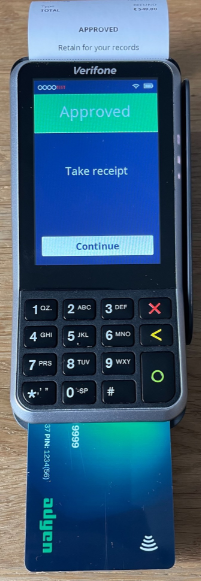
If the payment was for the full or remaining value of the sale the sale will complete automatically and a receipt will be printed, if there is still a balance to pay MYPOS will record the payment made and take you back to the payment screen again allowing you to select another method to pay the outstanding balance.

