


Step 1) Downloading the App
To start, download the app to your tablet, handheld device or phone from :
• iOS: MYPOS Connect Store Assist App - App Store
• Android: MYPOS Connect Store Assist – Apps on Google Play
Step 2) User access
Store Assist uses your existing portal account credentials, with role based permissions controlling access to features like price changes and stock adjustments.
Please contact your system administrator or MYPOS support to enable access.
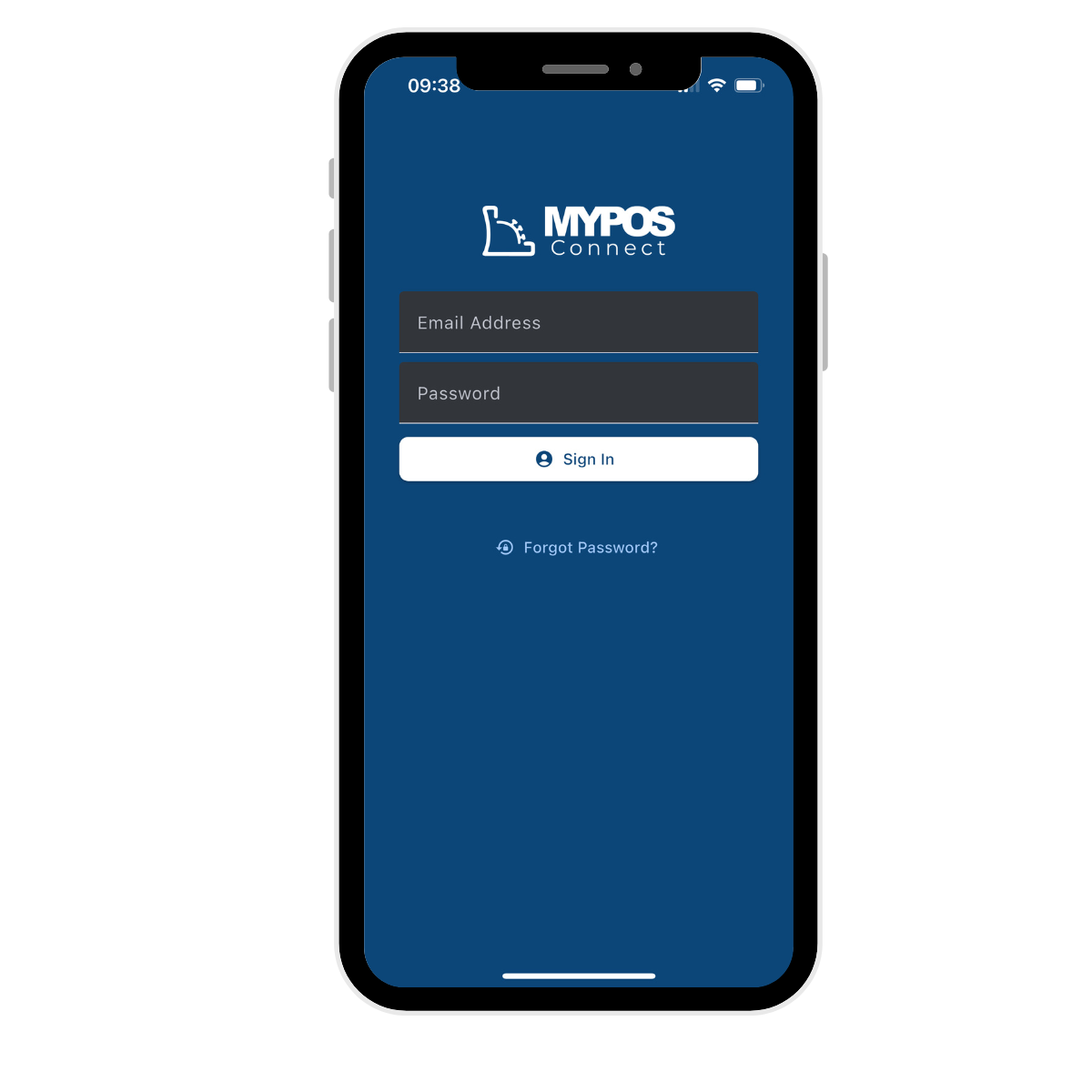
Step 3) Logging In
Step 4) Setting Up the App for the first time
When logging in for the first time:
1. Tap the settings cog wheel in the top right-hand corner of the screen.
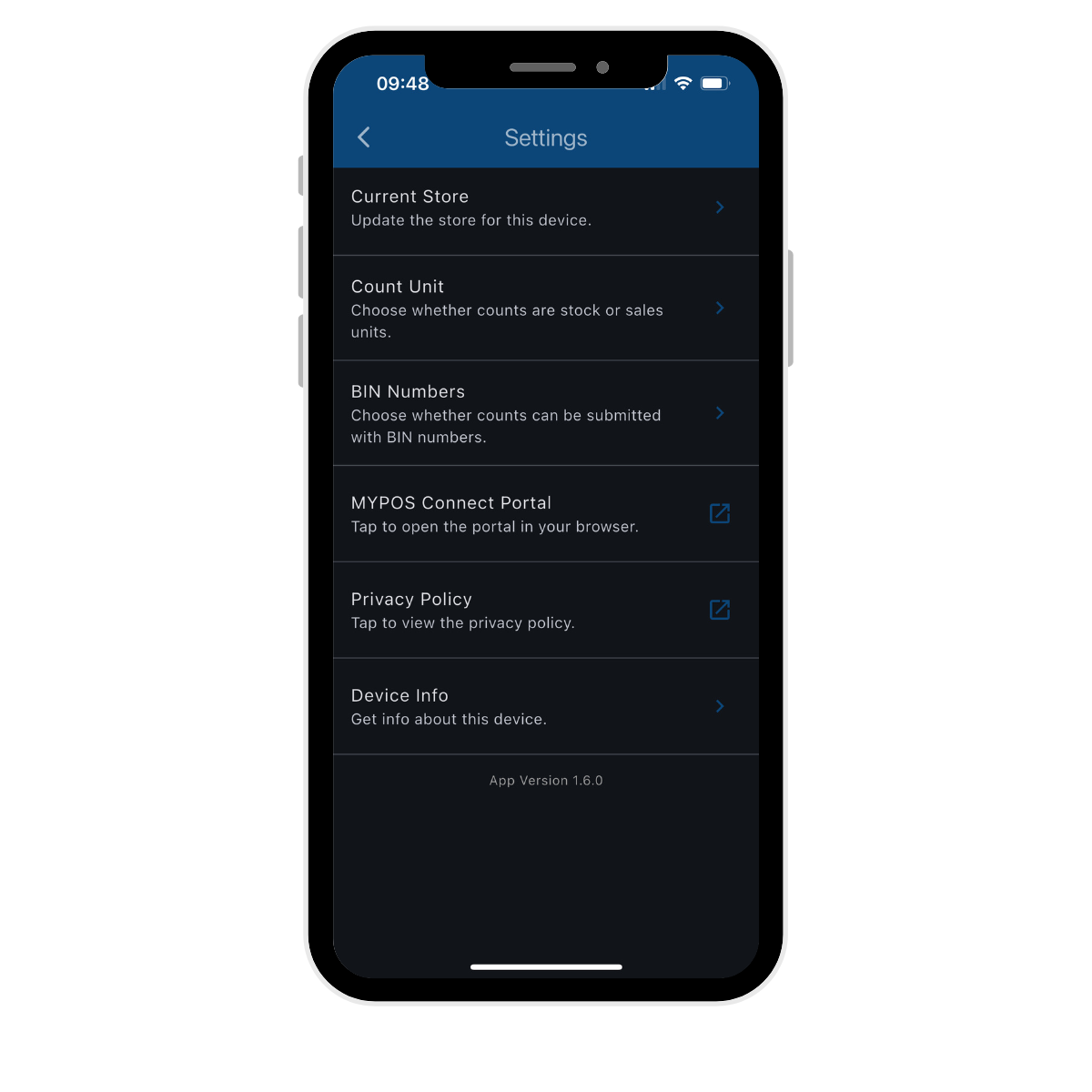
2. The Settings page will appear, allowing you to configure options based on your store setup.
3. You must select a store before you can use any features.
4. Your account login determines if you can change the store at a later date or not.
Here’s what you’ll need to set:
• Store: Select the store where this device will be used.
• Count Unit: Choose whether stock counts will be measured in Stock Units or Sales Units of Measure.
• Use BIN Numbers: Enable this option if you plan to use BIN numbers when counting (recommended for storerooms or warehouses).
Once these settings are configured, your app will be ready for use, and you can begin performing stock counts or other inventory management tasks directly from your device. The options that are shown to you are those approved for your login.
v.1.12.0

